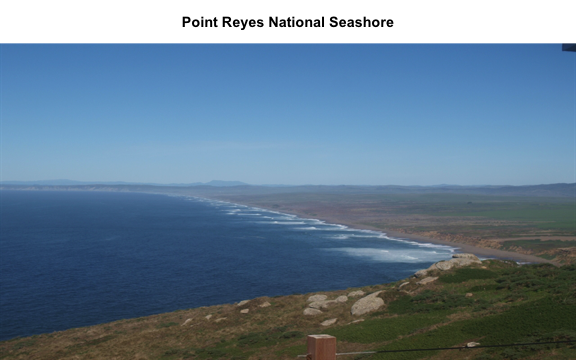
Before we start the image processing steps, let's read in and plot an image. This
image is an example image that comes with the hazer package.
# read the path to the example image
jpeg_file <- system.file(package = 'hazer', 'pointreyes.jpg')

# read the image as an array
rgb_array <- jpeg::readJPEG(jpeg_file)

# plot the RGB array on the active device panel


# first set the margin in this order:(bottom, left, top, right)
par(mar=c(0,0,3,0))
plotRGBArray(rgb_array, bty = 'n', main = 'Point Reyes National Seashore')
When we work with images, all data we work with is generally on the scale of each
individual pixel in the image. Therefore, for large images we will be working with
large matrices that hold the value for each pixel. Keep this in mind before opening
some of the matrices we'll be creating this tutorial as it can take a while for
them to load.
Histogram of RGB channels
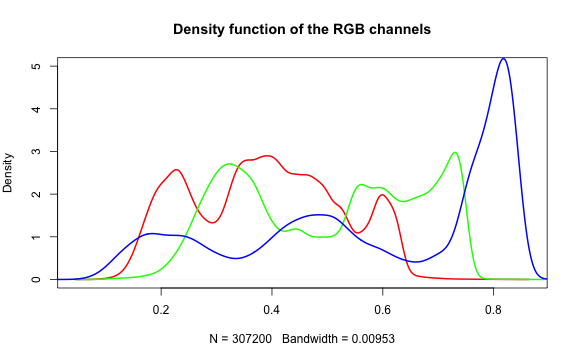
A histogram of the colors can be useful to understanding what our image is made
up of. Using the density() function from the base stats package, we can extract
density distribution of each color channel.
# color channels can be extracted from the matrix
red_vector <- rgb_array[,,1]
green_vector <- rgb_array[,,2]
blue_vector <- rgb_array[,,3]

# plotting
par(mar=c(5,4,4,2))
plot(density(red_vector), col = 'red', lwd = 2,
		 main = 'Density function of the RGB channels', ylim = c(0,5))
lines(density(green_vector), col = 'green', lwd = 2)
lines(density(blue_vector), col = 'blue', lwd = 2)
In hazer we can also extract three basic elements of an RGB image :
Brightness
Darkness
Contrast
Brightness
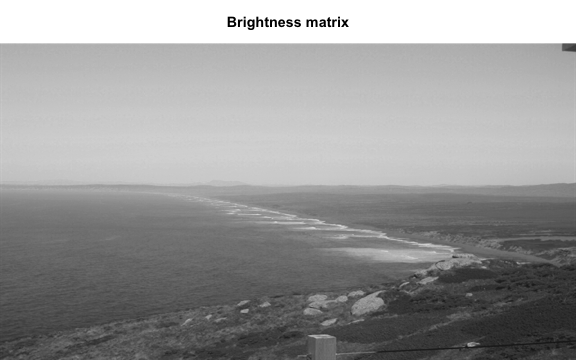
The brightness matrix comes from the maximum value of the R, G, or B channel. We
can extract and show the brightness matrix using the getBrightness() function.
# extracting the brightness matrix
brightness_mat <- getBrightness(rgb_array)

# unlike the RGB array which has 3 dimensions, the brightness matrix has only two
# dimensions and can be shown as a grayscale image,
# we can do this using the same plotRGBArray function
par(mar=c(0,0,3,0))
plotRGBArray(brightness_mat, bty = 'n', main = 'Brightness matrix')
Here the grayscale is used to show the value of each pixel's maximum brightness
of the R, G or B color channel.
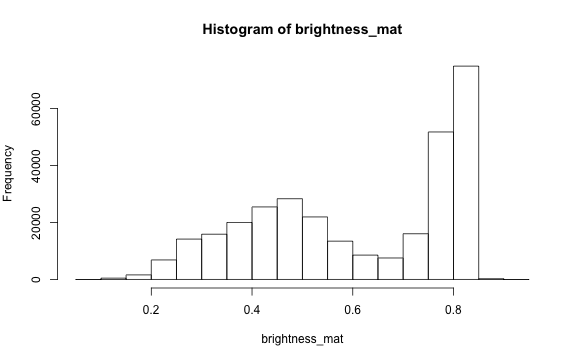
To extract a single brightness value for the image, depending on our needs we can
perform some statistics or we can just use the mean of this matrix.
Why are we getting so many images up in the high range of the brightness? Where
does this correlate to on the RGB image?
Darkness
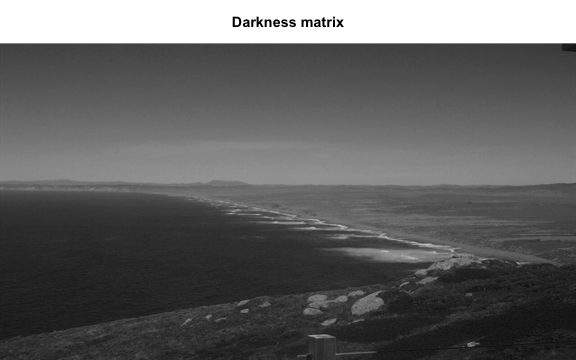
Darkness is determined by the minimum of the R, G or B color channel.
Similarly, we can extract and show the darkness matrix using the getDarkness() function.
# extracting the darkness matrix
darkness_mat <- getDarkness(rgb_array)

# the darkness matrix has also two dimensions and can be shown as a grayscale image
par(mar=c(0,0,3,0))
plotRGBArray(darkness_mat, bty = 'n', main = 'Darkness matrix')

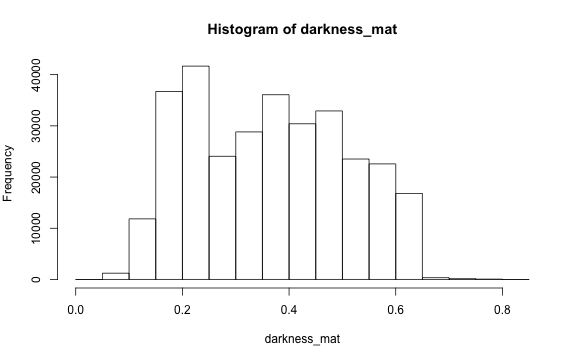
# main quantiles
quantile(darkness_mat)

#>         0%        25%        50%        75%       100%
#> 0.03529412 0.23137255 0.36470588 0.47843137 0.83529412


# histogram
par(mar=c(5,4,4,2))
hist(darkness_mat)
Contrast
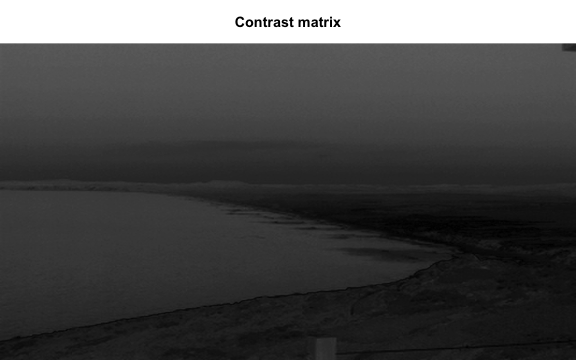
The contrast of an image is the difference between the darkness and brightness
of the image. The contrast matrix is calculated by difference between the
darkness and brightness matrices.
The contrast of the image can quickly be extracted using the getContrast() function.
# extracting the contrast matrix
contrast_mat <- getContrast(rgb_array)

# the contrast matrix has also 2D and can be shown as a grayscale image
par(mar=c(0,0,3,0))
plotRGBArray(contrast_mat, bty = 'n', main = 'Contrast matrix')

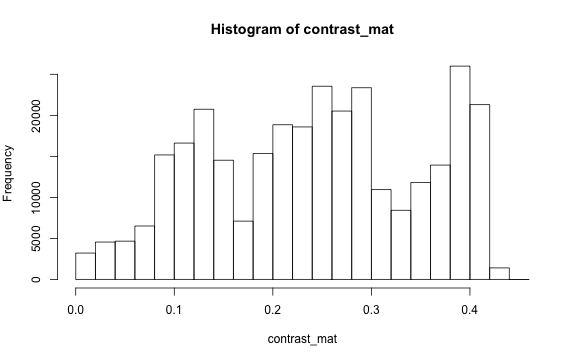
# main quantiles
quantile(contrast_mat)

#>        0%       25%       50%       75%      100%
#> 0.0000000 0.1450980 0.2470588 0.3333333 0.4509804


# histogram
par(mar=c(5,4,4,2))
hist(contrast_mat)
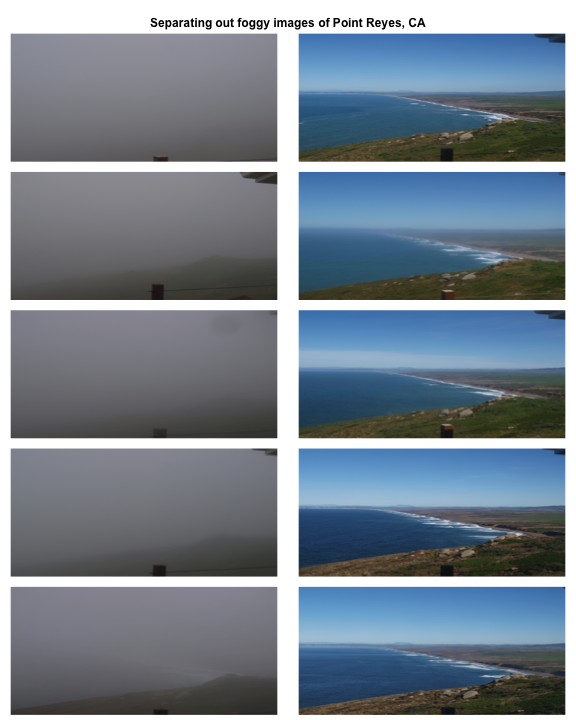
Image fogginess & haziness
Haziness of an image can be estimated using the getHazeFactor() function. This
function is based on the method described in
Mao et al. (2014).
The technique was originally developed to for "detecting foggy images and
estimating the haze degree factor" for a wide range of outdoor conditions.
The function returns a vector of two numeric values:
haze as the haze degree and
A0 as the global atmospheric light, as it is explained in the original paper.
The PhenoCam standards classify any image with the haze degree greater
than 0.4 as a significantly foggy image.
Download and extract the zip file to be used as input data for the following step.
# to download via R
dir.create('data')

#> Warning in dir.create("data"): 'data' already exists

destfile = 'data/pointreyes.zip'
download.file(destfile = destfile, mode = 'wb', url = 'http://bit.ly/2F8w2Ia')
unzip(destfile, exdir = 'data')


# set up the input image directory
#pointreyes_dir <- '/path/to/image/directory/'
pointreyes_dir <- 'data/pointreyes/'

# get a list of all .jpg files in the directory
pointreyes_images <- dir(path = pointreyes_dir,
                         pattern = '*.jpg',
                         ignore.case = TRUE,
                         full.names = TRUE)
Now we can use a for loop to process all of the images to get the haze and A0
values.
(Note, this loop may take a while to process.)
# number of images
n <- length(pointreyes_images)

# create an empty matrix to fill with haze and A0 values
haze_mat <- data.table()

# the process takes a bit, a progress bar lets us know it is working.
pb <- txtProgressBar(0, n, style = 3)

#>
Now we can save all the foggy images to a new folder that will retain the
foggy images but keep them separate from the non-foggy ones that we want to
analyze.
# identify directory to move the foggy images to
foggy_dir <- paste0(pointreyes_dir, 'foggy')
clear_dir <- paste0(pointreyes_dir, 'clear')

# if a new directory, create new directory at this file path
dir.create(foggy_dir,  showWarnings = FALSE)
dir.create(clear_dir,  showWarnings = FALSE)

# copy the files to the new directories
file.copy(haze_mat[foggy==TRUE,file], to = foggy_dir)

#>  [1] FALSE FALSE FALSE FALSE FALSE FALSE FALSE FALSE FALSE FALSE FALSE FALSE FALSE FALSE
#> [15] FALSE FALSE FALSE FALSE FALSE FALSE FALSE FALSE FALSE FALSE FALSE FALSE FALSE FALSE
#> [29] FALSE FALSE


file.copy(haze_mat[foggy==FALSE,file], to = clear_dir)

#>  [1] FALSE FALSE FALSE FALSE FALSE FALSE FALSE FALSE FALSE FALSE FALSE FALSE FALSE FALSE
#> [15] FALSE FALSE FALSE FALSE FALSE FALSE FALSE FALSE FALSE FALSE FALSE FALSE FALSE FALSE
#> [29] FALSE FALSE FALSE FALSE FALSE FALSE FALSE FALSE FALSE FALSE FALSE FALSE FALSE
Now that we have our images separated, we can get the full list of haze
values only for those images that are not classified as "foggy".
# this is an alternative approach instead of a for loop

# loading all the images as a list of arrays
pointreyes_clear_images <- dir(path = clear_dir,
                         pattern = '*.jpg',
                         ignore.case = TRUE,
                         full.names = TRUE)

img_list <- lapply(pointreyes_clear_images, FUN = jpeg::readJPEG)

# getting the haze value for the list
# patience - this takes a bit of time
haze_list <- t(sapply(img_list, FUN = getHazeFactor))

# view first few entries
head(haze_list)

#>      haze      A0
#> [1,] 0.224981  0.6970257
#> [2,] 0.2339372 0.6826148
#> [3,] 0.231294  0.7009978
#> [4,] 0.2297961 0.6813884
#> [5,] 0.2152078 0.6949932
#> [6,] 0.345584  0.6789334
We can then use these values for further analyses and data correction.
This tutorial covers downloading NEON data, using the Data Portal and
either the neonUtilities R package or the neonutilities Python package,
as well as basic instruction in beginning to explore and work with the
downloaded data, including guidance in navigating data documentation. We
will explore data of 3 different types, and make a simple figure from
each.
NEON data
There are 3 basic categories of NEON data:
Remote sensing (AOP) - Data collected by the airborne observation
platform, e.g. LIDAR, surface reflectance
Observational (OS) - Data collected by a human in the field, or in
an analytical laboratory, e.g. beetle identification, foliar
isotopes
Instrumentation (IS) - Data collected by an automated, streaming
sensor, e.g. net radiation, soil carbon dioxide. This category also
includes the surface-atmosphere exchange (SAE) data, which are processed
and structured in a unique way, distinct from other instrumentation data
(see the introductory
eddy
flux data tutorial for details).
This lesson covers all three types of data. The download procedures
are similar for all types, but data navigation differs significantly by
type.
Objectives
After completing this activity, you will be able to:
Download NEON data using the neonUtilities package.
Understand downloaded data sets and load them into R or Python for
analyses.
Things You’ll Need To Complete This Tutorial
You can follow either the R or Python code throughout this tutorial.
* For R users, we recommend using R version 4+ and RStudio. * For Python
users, we recommend using Python 3.9+.
Set up: Install Packages
Packages only need to be installed once, you can skip this step after
the first time:
R
neonUtilities: Basic functions for accessing NEON
data
neonOS: Functions for common data wrangling needs
for NEON observational data.
terra: Spatial data package; needed for working
with remote sensing data.
import neonutilities as nu
import os
import rasterio
import pandas as pd
import matplotlib.pyplot as plt
Getting started: Download data from the Portal
Go to the NEON
Data Portal and download some data! To follow the tutorial exactly,
download Photosynthetically active radiation (PAR) (DP1.00024.001) data
from September-November 2019 at Wind River Experimental Forest (WREF).
The downloaded file should be a zip file named NEON_par.zip.
If you prefer to explore a different data product, you can still
follow this tutorial. But it will be easier to understand the steps in
the tutorial, particularly the data navigation, if you choose a sensor
data product for this section.
Once you’ve downloaded a zip file of data from the portal, switch
over to R or Python to proceed with coding.
Stack the downloaded data files: stackByTable()
The stackByTable() (or stack_by_table())
function will unzip and join the files in the downloaded zip file.
R
# Modify the file path to match the path to your zip file
stackByTable("~/Downloads/NEON_par.zip")
Python
# Modify the file path to match the path to your zip file
nu.stack_by_table(os.path.expanduser("~/Downloads/NEON_par.zip"))
In the directory where the zipped file was saved, you should now have
an unzipped folder of the same name. When you open this you will see a
new folder called stackedFiles, which should contain at
least seven files: PARPAR_30min.csv,
PARPAR_1min.csv, sensor_positions.csv,
variables_00024.csv, readme_00024.txt,
issueLog_00024.csv, and
citation_00024_RELEASE-202X.txt.
Navigate data downloads: IS
Let’s start with a brief description of each file. This set of files
is typical of a NEON IS data product.
PARPAR_30min.csv: PAR data at 30-minute averaging
intervals
PARPAR_1min.csv: PAR data at 1-minute averaging
intervals
sensor_positions.csv: The physical location of each
sensor collecting PAR measurements. There is a PAR sensor at each level
of the WREF tower, and this table lets you connect the tower level index
to the height of the sensor in meters.
variables_00024.csv: Definitions and units for each
data field in the PARPAR_#min tables.
readme_00024.txt: Basic information about the PAR
data product.
issueLog_00024.csv: A record of known issues
associated with PAR data.
citation_00024_RELEASE-202X.txt: The citation to
use when you publish a paper using these data, in BibTeX format.
We’ll explore the 30-minute data. To read the file, use the function
readTableNEON() or read_table_neon(), which
uses the variables file to assign data types to each column of data:
par30 = nu.read_table_neon(
  data_file=os.path.expanduser(
    "~/Downloads/NEON_par/stackedFiles/PARPAR_30min.csv"),
  var_file=os.path.expanduser(
    "~/Downloads/NEON_par/stackedFiles/variables_00024.csv"))
# Open the par30 table in the table viewer of your choice
The first four columns are added by stackByTable() when
it merges files across sites, months, and tower heights. The column
publicationDate is the date-time stamp indicating when the
data were published, and the release column indicates which
NEON data release the data belong to. For more information about NEON
data releases, see the
Data
Product Revisions and Releases page.
Information about each data column can be found in the variables
file, where you can see definitions and units for each column of
data.
Plot PAR data
Now that we know what we’re looking at, let’s plot PAR from the top
tower level. We’ll use the mean PAR from each averaging interval, and we
can see from the sensor positions file that the vertical index 080
corresponds to the highest tower level. To explore the sensor positions
data in more depth, see the
spatial
data tutorial.
We can see there is a lot of light attenuation through the
canopy.
Download files and load directly to R:
loadByProduct()
At the start of this tutorial, we downloaded data from the NEON data
portal. NEON also provides an API, and the neonUtilities
packages provide methods for downloading programmatically.
The steps we carried out above - downloading from the portal,
stacking the downloaded files, and reading in to R or Python - can all
be carried out in one step by the neonUtilities function
loadByProduct().
To get the same PAR data we worked with above, we would run this line
of code using loadByProduct():
The object returned by loadByProduct() in R is a named
list, and the object returned by load_by_product() in
Python is a dictionary. The objects contained in the list or dictionary
are the same set of tables we ended with after stacking the data from
the portal above. You can see this by checking the names of the tables
in parlist:
Now let’s walk through the details of the inputs and options in
loadByProduct().
This function downloads data from the NEON API, merges the
site-by-month files, and loads the resulting data tables into the
programming environment, assigning each data type to the appropriate
class. This is a popular choice for NEON data users because it ensures
you’re always working with the latest data, and it ends with
ready-to-use tables. However, if you use it in a workflow you run
repeatedly, keep in mind it will re-download the data every time. See
below for suggestions on saving the data locally to save time and
compute resources.
loadByProduct() works on most observational (OS) and
sensor (IS) data, but not on surface-atmosphere exchange (SAE) data and remote sensing (AOP) data. For functions that download AOP data, see the final
section in this tutorial. For functions that work with SAE data, see the
NEON
eddy flux data tutorial.
The inputs to loadByProduct() control which data to
download and how to manage the processing. The list below shows the R syntax; in Python,
the inputs are the same but all lowercase (e.g. `dpid` instead of `dpID`)
and `.` is replaced by `_`.
dpID: the data product ID, e.g. DP1.00002.001
site: defaults to “all”, meaning all sites with
available data; can be a vector of 4-letter NEON site codes, e.g.
c("HARV","CPER","ABBY") (or
["HARV","CPER","ABBY"] in Python)
startdate and enddate: defaults to NA,
meaning all dates with available data; or a date in the form YYYY-MM,
e.g. 2017-06. Since NEON data are provided in month packages, finer
scale querying is not available. Both start and end date are
inclusive.
package: either basic or expanded data package.
Expanded data packages generally include additional information about
data quality, such as chemical standards and quality flags. Not every
data product has an expanded package; if the expanded package is
requested but there isn’t one, the basic package will be
downloaded.
timeIndex: defaults to “all”, to download all data; or
the number of minutes in the averaging interval. Only applicable to IS
data.
release: Specify a NEON data release to download.
Defaults to the most recent release plus provisional data. See the
release
tutorial for more information.
include.provisional: T or F: should Provisional data be
included in the download? Defaults to F to return only Released data,
which are citable by a DOI and do not change over time. Provisional data
are subject to change.
check.size: T or F: should the function pause before
downloading data and warn you about the size of your download? Defaults
to T; if you are using this function within a script or batch process
you will want to set it to F.
token: Optional NEON API token for faster downloads.
See
this
tutorial for instructions on using a token.
progress: Set to F to turn off progress bars.
cloud.mode: Can be set to T if you are working in a
cloud environment; enables more efficient data transfer from NEON’s
cloud storage.
The dpID is the data product identifier of the data you
want to download. The DPID can be found on the
Explore Data Products page. It will be in the form DP#.#####.###
Download observational data
To explore observational data, we’ll download aquatic plant chemistry
data (DP1.20063.001) from three lake sites: Prairie Lake (PRLA), Suggs
Lake (SUGG), and Toolik Lake (TOOK).
As we saw above, the object returned by loadByProduct()
is a named list of data frames. Let’s check out what’s the same and
what’s different from the IS data tables.
As with the sensor data, we have some data tables and some metadata
tables. Most of the metadata files are the same as the sensor data:
readme, variables,
issueLog, and citation. These files
contain the same type of metadata here that they did in the IS data
product. Let’s look at the other files:
apl_clipHarvest: Data from the clip harvest
collection of aquatic plants
apl_biomass: Biomass data from the collected
plants
apl_plantExternalLabDataPerSample: Chemistry data
from the collected plants
apl_plantExternalLabQA: Quality assurance data from
the chemistry analyses
asi_externalLabPOMSummaryData: Quality metrics from
the chemistry lab
validation_20063: For observational data, a major
method for ensuring data quality is to control data entry. This file
contains information about the data ingest rules applied to each input
data field.
categoricalCodes_20063: Definitions of each value
for categorical data, such as growth form and sample condition
You can work with these tables from the named list object, but many
people find it easier to extract each table from the list and work with
it as an independent object. To do this, use the list2env()
function in R or globals().update() in Python:
R
list2env(apchem, .GlobalEnv)
## <environment: R_GlobalEnv>
Python
globals().update(apchem)
Save data locally
Keep in mind that using loadByProduct() will re-download
the data every time you run your code. In some cases this may be
desirable, but it can be a waste of time and compute resources. To come
back to these data without re-downloading, you’ll want to save the
tables locally. The most efficient option is to save the named list in
total - this will also preserve the data types.
R
saveRDS(apchem,
        "~/Downloads/aqu_plant_chem.rds")
Python
# There are a variety of ways to do this in Python; NEON
# doesn't currently have a specific recommendation. If
# you don't have a data-saving workflow you already use,
# we suggest you check out the pickle module.
Then you can re-load the object to a programming environment any
time.
Other options for saving data locally:
Similar to the workflow we started this tutorial with, but using
neonUtilities to download instead of the Portal: Use
zipsByProduct() and stackByTable() instead of
loadByProduct(). With this option, use the function
readTableNEON() to read the files, to get the same column
type assignment that loadByProduct() carries out. Details
can be found in our
neonUtilities
tutorial.
Try out the community-developed neonstore package,
which is designed for maintaining a local store of the NEON data you
use. The neonUtilities function
stackFromStore() works with files downloaded by
neonstore. See the
neonstore
tutorial for more information.
Now let’s explore the aquatic plant data. OS data products are simple
in that the data are generally tabular, and data volumes are lower than the other NEON data types, but they are complex in that almost all consist
of multiple tables containing information collected at different times
in different ways. For example, samples collected in the field may be
shipped to a laboratory for analysis. Data associated with the field
collection will appear in one data table, and the analytical results
will appear in another. Complexity in working with OS data usually
involves bringing data together from multiple measurements or scales of
analysis.
As with the IS data, the variables file can tell you more about the
data tables.
OS data products each come with a Data Product User Guide, which can
be downloaded with the data, or accessed from the document library on
the Data Portal, or the
Product
Details page for the data product. The User Guide is designed to
give a basic introduction to the data product, including a brief summary
of the protocol and descriptions of data format and structure.
Explore isotope data
To get started with the aquatic plant chemistry data, let’s take a
look at carbon isotope ratios in plants across the three sites we
downloaded. The chemical analytes are reported in the
apl_plantExternalLabDataPerSample table, and the table is
in long format, with one record per sample per analyte, so we’ll subset
to only the carbon isotope analyte:
apl13C = apl_plantExternalLabDataPerSample[
         apl_plantExternalLabDataPerSample.analyte=="d13C"]
grouped = apl13C.groupby("siteID")["analyteConcentration"]
fig, ax = plt.subplots()
ax.boxplot(x=[group.values for name, group in grouped],
           tick_labels=grouped.groups.keys())
plt.show()
We see plants at Suggs and Toolik are quite low in 13C, with more
spread at Toolik than Suggs, and plants at Prairie Lake are relatively
enriched. Clearly the next question is what species these data
represent. But taxonomic data aren’t present in the
apl_plantExternalLabDataPerSample table, they’re in the
apl_biomass table. We’ll need to join the two tables to get
chemistry by taxon.
Every NEON data product has a Quick Start Guide (QSG), and for OS
products it includes a section describing how to join the tables in the
data product. Since it’s a pdf file, loadByProduct()
doesn’t bring it in, but you can view the Aquatic plant chemistry QSG on
the
Product
Details page. In R, the neonOS package uses the information
from the QSGs to provide an automated table-joining function,
joinTableNEON().
And now we can see most of the sampled plants have carbon isotope
ratios around -30, with just a few species accounting for most of the
more enriched samples.
Download remote sensing data: byFileAOP() and
byTileAOP()
Remote sensing data files are very large, so downloading them can
take a long time. byFileAOP() and byTileAOP()
enable easier programmatic downloads, but be aware it can take a very
long time to download large amounts of data.
Input options for the AOP functions are:
dpID: the data product ID, e.g. DP1.00002.001
site: the 4-letter code of a single site,
e.g. HARV
year: the 4-digit year to download
savepath: the file path you want to download to;
defaults to the working directory
check.size: T or F: should the function pause before
downloading data and warn you about the size of your download? Defaults
to T; if you are using this function within a script or batch process
you will want to set it to F.
easting: byTileAOP() only. Vector of
easting UTM coordinates whose corresponding tiles you want to
download
northing: byTileAOP() only. Vector of
northing UTM coordinates whose corresponding tiles you want to
download
buffer: byTileAOP() only. Size in meters
of buffer to include around coordinates when deciding which tiles to
download
token: Optional NEON API token for faster
downloads.
chunk_size: Only in Python. Set the chunk size of
chunked downloads, can improve efficiency in some cases. Defaults to 1
MB.
Here, we’ll download one tile of Ecosystem structure (Canopy Height
Model) (DP3.30015.001) from WREF in 2017.
In the directory indicated in savepath, you should now
have a folder named DP3.30015.001 with several nested
subfolders, leading to a tif file of a canopy height model tile.
Navigate data downloads: AOP
To work with AOP data, the best bet in R is the terra
package. It has functionality for most analyses you might want to do. In
Python, we’ll use the rasterio package here; explore NEON remote sensing
tutorials for more guidance.
Now we can see canopy height across the downloaded tile; the tallest
trees are over 60 meters, not surprising in the Pacific Northwest. There
is a clearing or clear cut in the lower right quadrant.
Next steps
Now that you’ve learned the basics of downloading and understanding
NEON data, where should you go to learn more? There are many more NEON
tutorials to explore, including how to align remote sensing and
ground-based measurements, a deep dive into the data quality flagging in
the sensor data products, and much more. For a recommended suite of
tutorials for new users, check out the
Getting
Started with NEON Data tutorial series.
In this tutorial, we will use the Spectral Python (SPy) package to run a KMeans unsupervised classification algorithm and then we will run Principal Component Analysis to reduce data dimensionality.
Objectives
After completing this tutorial, you will be able to:
Run kmeans unsupervised classification on AOP hyperspectral data
Reduce data dimensionality using Principal Component Analysis (PCA)
Install Python Packages
To run this notebook, the following Python packages need to be installed. You can install required packages from the command line (prior to opening your notebook), e.g. pip install gdal h5py neonutilities scikit-learn spectral requests. If already in a Jupyter Notebook, run the same command in a Code cell, but start with !pip install.
gdal
h5py
neonutilities
scikit-image
spectral
requests
For visualization (optional)
In order to make use of the interactive graphics capabilities of spectralpython, such as N-Dimensional Feature Display, you will need the additional packages below. These are not required to complete this lesson.
The data required for this lesson will be downloaded in the beginning of the tutorial using the Python neonutilities package.
In this tutorial, we will use the Spectral Python (SPy) package to run KMeans unsupervised classification algorithm as well as Principal Component Analysis (PCA).
To learn more about the Spectral Python packages read:
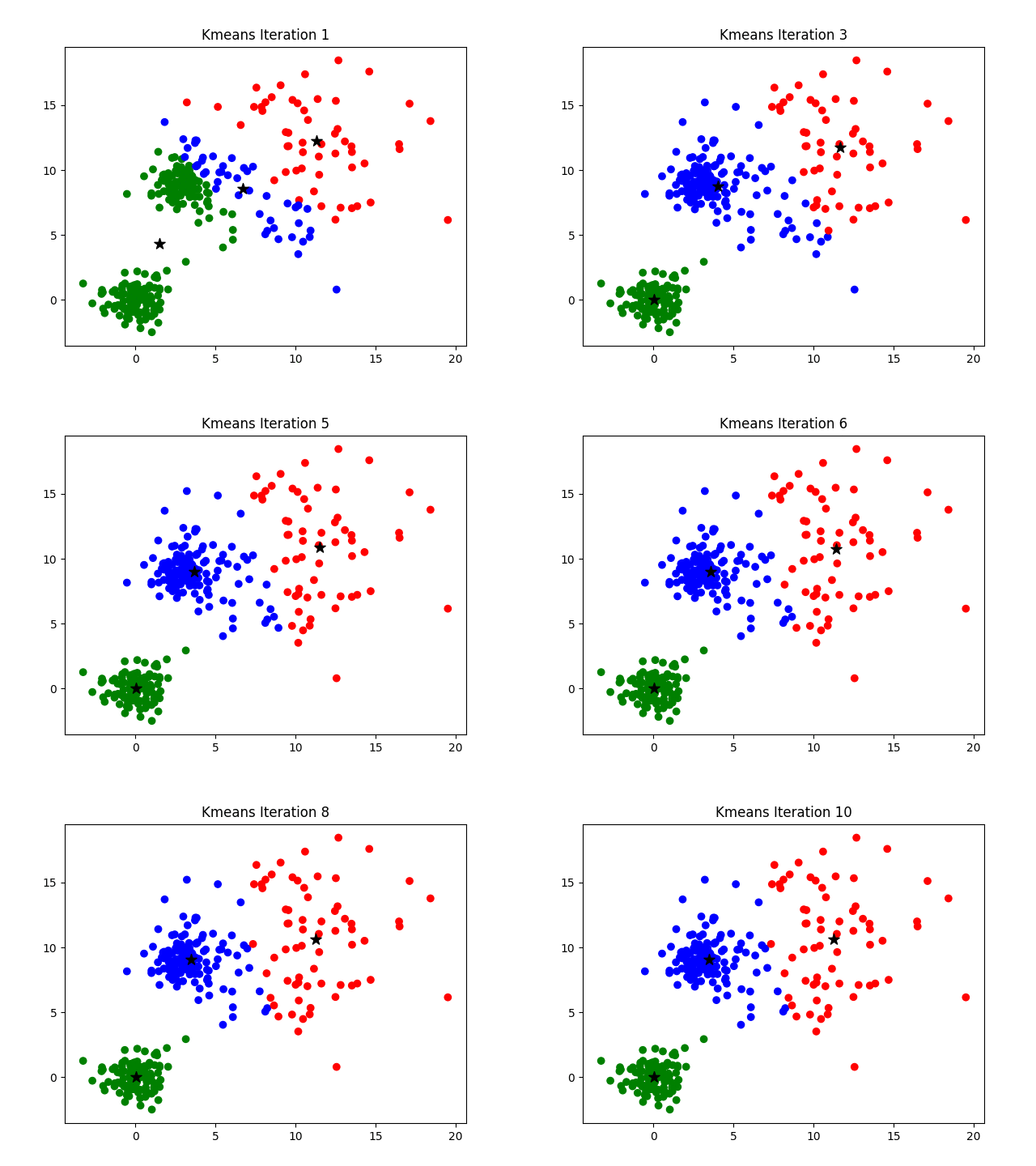
KMeans is an iterative clustering algorithm used to classify unsupervised data (eg. data without a training set) into a specified number of groups. The algorithm begins with an initial set of randomly determined cluster centers. Each pixel in the image is then assigned to the nearest cluster center (using distance in N-space as the distance metric) and each cluster center is then re-computed as the centroid of all pixels assigned to the cluster. This process repeats until a desired stopping criterion is reached (e.g. max number of iterations).
To visualize how the algorithm works, it's easier look at a 2D data set. In the example below, watch how the cluster centers shift with progressive iterations,
Principal Component Analysis (PCA) - Dimensionality Reduction
Many of the bands within hyperspectral images are often strongly correlated. The principal components transformation represents a linear transformation of the original image bands to a set of new, uncorrelated features. These new features correspond to the eigenvectors of the image covariance matrix, where the associated eigenvalue represents the variance in the direction of the eigenvector. A very large percentage of the image variance can be captured in a relatively small number of principal components (compared to the original number of bands).
For this example, we will download a bidirectional surface reflectance data cube at the SERC site, collected in 2022.
nu.by_tile_aop(dpid='DP3.30006.002',
               site='SERC',
               year='2022',
               easting=368005,
               northing=4306005,
               include_provisional=True,
               #token=your_token_here
               savepath=os.path.join(data_dir)) # save to the home directory under a 'data' subfolder
Provisional data are included. To exclude provisional data, use input parameter include_provisional=False.


Continuing will download 2 files totaling approximately 692.0 MB. Do you want to proceed? (y/n)  y
Let's see what data were downloaded.
# iterating over directory and subdirectory to get desired result
for root, dirs, files in os.walk(data_dir):
    for name in files:
        if name.endswith('.h5'):
            print(os.path.join(root, name))  # printing file name
# function to download data stored on the internet in a public url to a local file
def download_url(url,download_dir):
    if not os.path.isdir(download_dir):
        os.makedirs(download_dir)
    filename = url.split('/')[-1]
    r = requests.get(url, allow_redirects=True)
    file_object = open(os.path.join(download_dir,filename),'wb')
    file_object.write(r.content)
module_url = "https://raw.githubusercontent.com/NEONScience/NEON-Data-Skills/main/tutorials/Python/AOP/aop_python_modules/neon_aop_hyperspectral.py"
download_url(module_url,'../python_modules')
# os.listdir('../python_modules') #optionally show the contents of this directory to confirm the file downloaded
sys.path.insert(0, '../python_modules')
# import the neon_aop_hyperspectral module, the semicolon supresses an empty plot from displaying
import neon_aop_hyperspectral as neon_hs;
# read in the reflectance data using the aop_h5refl2array function, this may also take a bit of time
start_time = time()
refl, refl_metadata, wavelengths = neon_hs.aop_h5refl2array(h5_tile,'Reflectance')
print("--- It took %s seconds to read in the data ---" % round((time() - start_time),0))
Reading in  C:\Users\bhass\data\DP3.30006.002\neon-aop-provisional-products\2022\FullSite\D02\2022_SERC_6\L3\Spectrometer\Reflectance\NEON_D02_SERC_DP3_368000_4306000_bidirectional_reflectance.h5
--- It took 27.0 seconds to read in the data ---
The next few cells show how you can look at the contents, values, and dimensions of the refl_metadata, wavelengths, and refl variables, respectively.
print('First and last 5 center wavelengths, in nm:')
print(wavelengths[:5])
print(wavelengths[-5:])
First and last 5 center wavelengths, in nm:
[383.884003 388.891693 393.899506 398.907196 403.915009]
[2492.149414 2497.157227 2502.165039 2507.172607 2512.18042 ]
refl.shape
(1000, 1000, 426)
Next let's define a function to clean and subset the data.
def clean_neon_refl_data(data, metadata, wavelengths, subset_factor=1):
    """Clean h5 reflectance data and metadata
    1. set data ignore value (-9999) to NaN
    2. apply reflectance scale factor (10000)
    3. remove bad bands (water vapor band windows + last 10 bands):
        Band_Window_1_Nanometers = 1340, 1445
        Band_Window_2_Nanometers = 1790, 1955
    4. if subset_factor, subset by that factor
    """

    # use copy so original data and metadata doesn't change
    data_clean = data.copy().astype(float)
    metadata_clean = metadata.copy()

    #set data ignore value (-9999) to NaN:
    if metadata['no_data_value'] in data:
        nodata_ind = np.where(data_clean==metadata['no_data_value'])
        data_clean[nodata_ind]=np.nan

    #apply reflectance scale factor (divide by 10000)
    data_clean = data_clean/metadata['scale_factor']

    #remove bad bands
    #1. define indices corresponding to min/max center wavelength for each bad band window:
    bb1_ind0 = np.max(np.where(np.asarray(wavelengths<float(metadata['bad_band_window1'][0]))))
    bb1_ind1 = np.min(np.where(np.asarray(wavelengths>float(metadata['bad_band_window1'][1]))))

    bb2_ind0 = np.max(np.where(np.asarray(wavelengths<float(metadata['bad_band_window2'][0]))))
    bb2_ind1 = np.min(np.where(np.asarray(wavelengths>float(metadata['bad_band_window2'][1]))))
    bb3_ind0 = len(wavelengths)-15

    #define valid band ranges from indices:
    vb1 = list(range(10,bb1_ind0));
    vb2 = list(range(bb1_ind1,bb2_ind0))
    vb3 = list(range(bb2_ind1,bb3_ind0))
    # combine them to get a list of the valid bands
    vbs = vb1 + vb2 + vb3
    # subset by subset_factor (if subset_factor = 1 this will return the original valid_bands list)
    valid_bands_subset = vbs[::subset_factor]

    # subset the reflectance data by the valid_bands_subset
    data_clean = data_clean[:,:,valid_bands_subset]

    # subset the wavelengths by the same valid_bands_subset
    wavelengths_clean =[wavelengths[i] for i in valid_bands_subset]

    return data_clean, wavelengths_clean
# clean the data - remove the band bands and subset
start_time = time()
refl_clean, wavelengths_clean = clean_neon_refl_data(refl, refl_metadata, wavelengths, subset_factor=2)
print("--- It took %s seconds to clean and subset the reflectance data ---" % round((time() - start_time),0))
--- It took 12.0 seconds to clean and subset the reflectance data ---
# Look at the dimensions of the data after cleaning:
print('Cleaned Data Dimensions:',refl_clean.shape)
print('Cleaned Wavelengths:',len(wavelengths_clean))
Cleaned Data Dimensions: (1000, 1000, 173)
Cleaned Wavelengths: 173
start_time = time()
# run kmeans with 5 clusters and 50 iterations
(m,c) = kmeans(refl_clean, 5, 50)
print("--- It took %s minutes to run kmeans on the reflectance data ---" % round((time() - start_time)/60,1))
spectral:INFO: k-means iteration 1 - 373101 pixels reassigned.
k-means iteration 1 - 373101 pixels reassigned.
spectral:INFO: k-means iteration 2 - 135441 pixels reassigned.
k-means iteration 2 - 135441 pixels reassigned.
spectral:INFO: k-means iteration 3 - 54918 pixels reassigned.
k-means iteration 3 - 54918 pixels reassigned.
...
spectral:INFO: k-means iteration 49 - 12934 pixels reassigned.
k-means iteration 49 - 12934 pixels reassigned.
spectral:INFO: k-means iteration 50 - 10783 pixels reassigned.
k-means iteration 50 - 10783 pixels reassigned.
spectral:INFO: kmeans terminated with 5 clusters after 50 iterations.
kmeans terminated with 5 clusters after 50 iterations.


--- It took 3.7 minutes to run kmeans on the reflectance data ---
Note that the algorithm still had on the order of 10000 clusters reassigning, when the 50 iterations were reached. You may extend the # of iterations.
Data Tip: You can iterrupt the algorithm with a keyboard interrupt (CTRL-C) if you notice that the number of reassigned pixels drops off. Kmeans catches the KeyboardInterrupt exception and returns the clusters generated at the end of the previous iteration. If you are running the algorithm interactively, this feature allows you to set the max number of iterations to an arbitrarily high number and then stop the algorithm when the clusters have converged to an acceptable level. If you happen to set the max number of iterations too small (many pixels are still migrating at the end of the final iteration), you cancall kmeans again to resume processing by passing the cluster centers generated by the previous call as the optional start_clusters argument to the function.
Let's try that now:
start_time = time()
# run kmeans with 5 clusters and 50 iterations
(m, c) = kmeans(refl_clean, 5, 50, start_clusters=c)
print("--- It took %s minutes to run kmeans on the reflectance data ---" % round((time() - start_time)/60,1))
spectral:INFO: k-means iteration 1 - 787247 pixels reassigned.
k-means iteration 1 - 787247 pixels reassigned.
spectral:INFO: k-means iteration 2 - 7684 pixels reassigned.
k-means iteration 2 - 7684 pixels reassigned.
spectral:INFO: k-means iteration 3 - 6552 pixels reassigned.
k-means iteration 3 - 6552 pixels reassigned.
...
k-means iteration 49 - 11 pixels reassigned.
spectral:INFO: k-means iteration 50 - 13 pixels reassigned.
k-means iteration 50 - 13 pixels reassigned.
spectral:INFO: kmeans terminated with 5 clusters after 50 iterations.
kmeans terminated with 5 clusters after 50 iterations.


--- It took 3.6 minutes to run kmeans on the reflectance data ---
Passing the initial clusters in sped up the convergence considerably, the second time around.
Let's take a look at the new cluster centers c. In this case, these represent spectral signatures of the five clusters (classes) that the data were grouped into. First we can take a look at the shape:
print(c.shape)
(5, 173)
c contains 5 groups of spectral curves with 173 bands (the # of bands we've kept after subsetting and removing the water vapor windows, first 10 noisy bands and last 15 noisy bands). We can plot these spectral classes as follows:
import pylab
pylab.figure()
for i in range(c.shape[0]):
    pylab.plot(wavelengths_clean, c[i],'.')
pylab.show
pylab.title('Spectral Classes from K-Means Clustering')
pylab.xlabel('Wavelength (nm)')
pylab.ylabel('Reflectance');
Next, we can look at the classes in map view, as well as a true color image.
What do you think the spectral classes in the figure you just created represent?
Try using a different number of clusters in the kmeans algorithm (e.g., 3 or 10) to see what spectral classes and classifications result.
Try using different (higher) subset_factor in the clean_neon_refl_data function, like 3 or 5. Does this factor change the final classes that are created in the kmeans algorithm? By how much can you subset the data by and still achieve similar classification results?
Many of the bands within hyperspectral images are often strongly correlated. The principal components transformation represents a linear transformation of the original image bands to a set of new, uncorrelated features. These new features correspond to the eigenvectors of the image covariance matrix, where the associated eigenvalue represents the variance in the direction of the eigenvector. A very large percentage of the image variance can be captured in a relatively small number of principal components (compared to the original number of bands) .
pc = principal_components(refl_clean)
pc_view = imshow(pc.cov, extent=refl_metadata['extent'])
xdata = pc.transform(refl_clean)
In the covariance matrix display, lighter values indicate strong positive covariance, darker values indicate strong negative covariance, and grey values indicate covariance near zero.
To reduce dimensionality using principal components, we can sort the eigenvalues in descending order and then retain enough eigenvalues (anD corresponding eigenvectors) to capture a desired fraction of the total image variance. We then reduce the dimensionality of the image pixels by projecting them onto the remaining eigenvectors. We will choose to retain a minimum of 99.9% of the total image variance.
pc_999 = pc.reduce(fraction=0.999)

# How many eigenvalues are left?
print('# of eigenvalues:',len(pc_999.eigenvalues))

img_pc = pc_999.transform(refl_clean)
print(img_pc.shape)

v = imshow(img_pc[:,:,:3], stretch_all=True, extent=refl_metadata['extent']);
# of eigenvalues: 9
(1000, 1000, 9)
You can see that even though we've only retained a subset of the bands, a lot of the details about the scene are still visible.
If you had training data, you could use a Gaussian maximum likelihood classifier (GMLC) for the reduced principal components to train and classify against the training data.
Challenge Question: PCA
Run the k-means classification after running PCA and see if you get similar results. Does / how does reducing the data dimensionality affect the classification results?
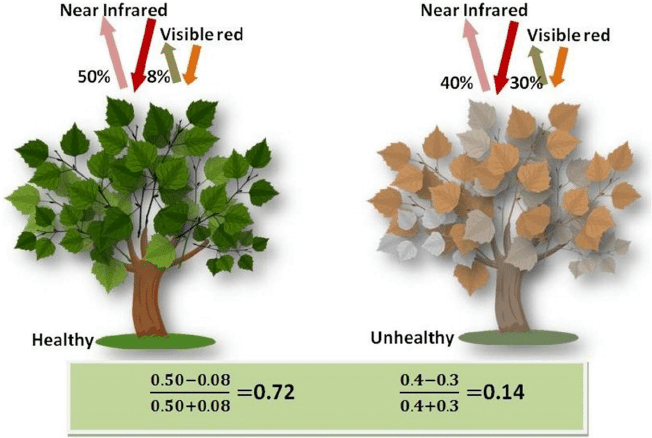
The Normalized Difference Vegetation Index (NDVI) is a standard band-ratio calculation frequently used to analyze ecological remote sensing data. NDVI indicates whether the remotely-sensed target contains live green vegetation. When sunlight strikes objects, certain wavelengths of the electromagnetic spectrum are absorbed and other wavelengths are reflected. The pigment chlorophyll in plant leaves strongly absorbs visible light (with wavelengths in the range of 400-700 nm) for use in photosynthesis. The cell structure of the leaves, however, strongly reflects near-infrared light (wavelengths ranging from 700 - 1100 nm). Plants reflect up to 60% more light in the near infrared portion of the spectrum than they do in the green portion of the spectrum. By calculating the ratio of Near Infrared (NIR) to Visible (VIS) bands in hyperspectral data, we can obtain a metric of vegetation density and health.
The formula for NDVI is: $$NDVI = \frac{(NIR - VIS)}{(NIR+ VIS)}$$
NDVI is calculated from the visible and near-infrared light reflected by vegetation. Healthy vegetation (left) absorbs most of the
visible light that hits it, and reflects a large portion of near-infrared light. Unhealthy or sparse vegetation (right) reflects more
visible light and less near-infrared light. Source: Figure 1 in Wu et. al. 2014. PLOS.
Start by setting plot preferences and loading the neon_aop_hyperspectral.py module:
import os, sys
from copy import copy
import requests
import numpy as np
import pandas as pd
import matplotlib.pyplot as plt
This next function is a handy way to download the Python module and data that we will be using for this lesson. This uses the requests package.
# function to download data stored on the internet in a public url to a local file
def download_url(url,download_dir):
    if not os.path.isdir(download_dir):
        os.makedirs(download_dir)
    filename = url.split('/')[-1]
    r = requests.get(url, allow_redirects=True)
    file_object = open(os.path.join(download_dir,filename),'wb')
    file_object.write(r.content)
Download the module from its location on GitHub, add the python_modules to the path and import the neon_aop_hyperspectral.py module as neon_hs.
# download the neon_aop_hyperspectral.py module from GitHub
module_url = "https://raw.githubusercontent.com/NEONScience/NEON-Data-Skills/main/tutorials/Python/AOP/aop_python_modules/neon_aop_hyperspectral.py"
download_url(module_url,'../python_modules')

# add the python_modules to the path and import the python neon download and hyperspectral functions
sys.path.insert(0, '../python_modules')
# import the neon_aop_hyperspectral module, the semicolon supresses an empty plot from displaying
import neon_aop_hyperspectral as neon_hs;
# define the data_url to point to the cloud storage location of the the hyperspectral hdf5 data file
data_url = "https://storage.googleapis.com/neon-aop-products/2021/FullSite/D02/2021_SERC_5/L3/Spectrometer/Reflectance/NEON_D02_SERC_DP3_368000_4306000_reflectance.h5"
# download the h5 data and display how much time it took to download (uncomment 1st and 3rd lines)
# start_time = time.time()
download_url(data_url,'.\data')
# print("--- It took %s seconds to download the data ---" % round((time.time() - start_time),1))
Read in SERC Reflectance Tile
# read the h5 reflectance file (including the full path) to the variable h5_file_name
h5_file_name = data_url.split('/')[-1]
h5_tile = os.path.join(".\data",h5_file_name)
print(f'h5_tile: {h5_tile}')
# Note you will need to update this filepath for your local machine
serc_refl, serc_refl_md, wavelengths = neon_hs.aop_h5refl2array(h5_tile,'Reflectance')
Reading in .\data\NEON_D02_SERC_DP3_368000_4306000_reflectance.h5
Extract NIR and VIS bands
Now that we have uploaded all the required functions, we can calculate NDVI and plot it.
Below we print the center wavelengths that these bands correspond to:
print('band 58 center wavelength (nm): ', wavelengths[57])
print('band 90 center wavelength (nm) : ', wavelengths[89])
band 58 center wavelength (nm):  669.3261
band 90 center wavelength (nm) :  829.5743
Calculate & Plot NDVI
Here we see that band 58 represents red visible light, while band 90 is in the NIR portion of the spectrum. Let's extract these two bands from the reflectance array and calculate the ratio using the numpy.true_divide which divides arrays element-wise. This also handles a case where the denominator = 0, which would otherwise throw a warning or error.
vis = serc_refl[:,:,57]
nir = serc_refl[:,:,89]

# handle a divide by zero by setting the numpy errstate as follows
with np.errstate(divide='ignore', invalid='ignore'):
    ndvi = np.true_divide((nir-vis),(nir+vis))
    ndvi[ndvi == np.inf] = 0
    ndvi = np.nan_to_num(ndvi)
Let's take a look at the min, mean, and max values of NDVI that we calculated:
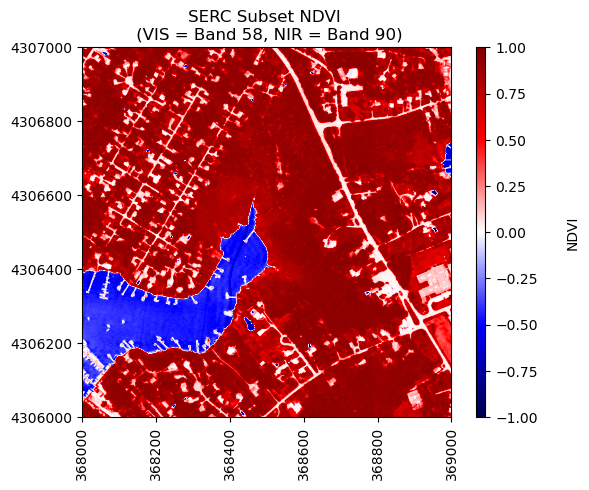
We can use the function plot_aop_refl to plot this, and choose the seismic color pallette to highlight the difference between positive and negative NDVI values. Since this is a normalized index, the values should range from -1 to +1.
neon_hs.plot_aop_refl(ndvi,serc_refl_md['extent'],
                      colorlimit = (np.min(ndvi),np.max(ndvi)),
                      title='SERC Subset NDVI \n (VIS = Band 58, NIR = Band 90)',
                      cmap_title='NDVI',
                      colormap='seismic')
Extract Spectra Using Masks
In the second part of this tutorial, we will learn how to extract the average spectra of pixels whose NDVI exceeds a specified threshold value. There are several ways to do this using numpy, including the mask functions numpy.ma, as well as numpy.where and finally using boolean indexing.
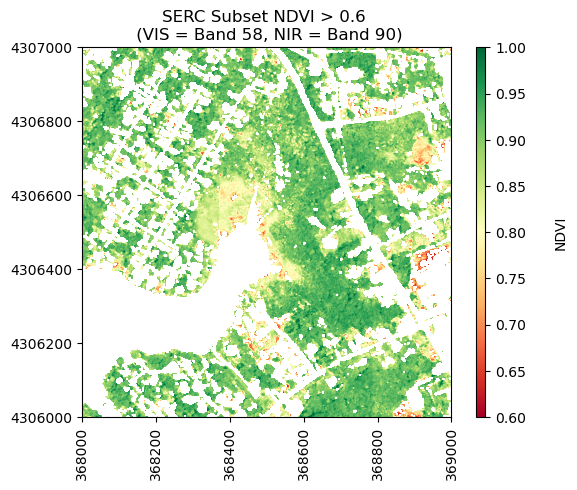
To start, lets copy the NDVI calculated above and use booleans to create an array only containing NDVI > 0.6.
# make a copy of ndvi
ndvi_gtpt6 = ndvi.copy()
#set all pixels with NDVI < 0.6 to nan, keeping only values > 0.6
ndvi_gtpt6[ndvi<0.6] = np.nan
print('Mean NDVI > 0.6:',round(np.nanmean(ndvi_gtpt6),2))
Mean NDVI > 0.6: 0.87
Now let's plot the values of NDVI after masking out values < 0.6.
neon_hs.plot_aop_refl(ndvi_gtpt6,
                      serc_refl_md['extent'],
                      colorlimit=(0.6,1),
                      title='SERC Subset NDVI > 0.6 \n (VIS = Band 58, NIR = Band 90)',
                      cmap_title='NDVI',
                      colormap='RdYlGn')
Calculate the mean spectra, thresholded by NDVI
Below we will demonstrate how to calculate statistics on arrays where you have applied a mask numpy.ma. In this example, the function calculates the mean spectra for values that remain after masking out values by a specified threshold.
import numpy.ma as ma
def calculate_mean_masked_spectra(refl_array,ndvi,ndvi_threshold,ineq='>'):
    mean_masked_refl = np.zeros(refl_array.shape[2])
    for i in np.arange(refl_array.shape[2]):
        refl_band = refl_array[:,:,i]
        if ineq == '>':
            ndvi_mask = ma.masked_where((ndvi<=ndvi_threshold) | (np.isnan(ndvi)),ndvi)
        elif ineq == '<':
            ndvi_mask = ma.masked_where((ndvi>=ndvi_threshold) | (np.isnan(ndvi)),ndvi)
        else:
            print('ERROR: Invalid inequality. Enter < or >')
        masked_refl = ma.MaskedArray(refl_band,mask=ndvi_mask.mask)
        mean_masked_refl[i] = ma.mean(masked_refl)
    return mean_masked_refl
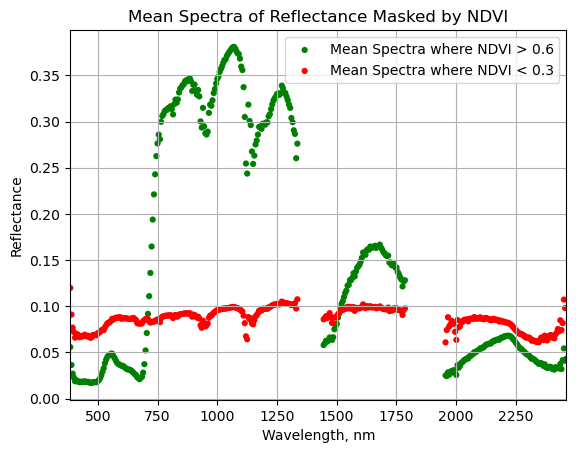
We can test out this function for various NDVI thresholds. We'll test two together, and you can try out different values on your own. Let's look at the average spectra for healthy vegetation (NDVI > 0.6), and for a lower threshold (NDVI < 0.3).
Finally, we can create a pandas dataframe to plot the mean spectra.
#Remove water vapor bad band windows & last 10 bands
w = wavelengths.copy()
w[((w >= 1340) & (w <= 1445)) | ((w >= 1790) & (w <= 1955))]=np.nan
w[-10:]=np.nan;

nan_ind = np.argwhere(np.isnan(w))

serc_ndvi_gtpt6[nan_ind] = np.nan
serc_ndvi_ltpt3[nan_ind] = np.nan

#Create dataframe with masked NDVI mean spectra, scale by the reflectance scale factor
serc_ndvi_df = pd.DataFrame()
serc_ndvi_df['wavelength'] = w
serc_ndvi_df['mean_refl_ndvi_gtpt6'] = serc_ndvi_gtpt6/serc_refl_md['scale_factor']
serc_ndvi_df['mean_refl_ndvi_ltpt3'] = serc_ndvi_ltpt3/serc_refl_md['scale_factor']
Let's take a look at the first 5 values of this new dataframe:
serc_ndvi_df.head()
wavelength
mean_refl_ndvi_gtpt6
mean_refl_ndvi_ltpt3
0
383.884003
0.055741
0.119835
1
388.891693
0.036432
0.090972
2
393.899506
0.027002
0.076867
3
398.907196
0.022841
0.072207
4
403.915009
0.018748
0.065984
Plot the masked NDVI dataframe to display the mean spectra for NDVI values that exceed 0.6 and that are less than 0.3:
ax = plt.gca();
serc_ndvi_df.plot(ax=ax,x='wavelength',y='mean_refl_ndvi_gtpt6',color='green',
                  edgecolor='none',kind='scatter',label='Mean Spectra where NDVI > 0.6',legend=True);
serc_ndvi_df.plot(ax=ax,x='wavelength',y='mean_refl_ndvi_ltpt3',color='red',
                  edgecolor='none',kind='scatter',label='Mean Spectra where NDVI < 0.3',legend=True);
ax.set_title('Mean Spectra of Reflectance Masked by NDVI')
ax.set_xlim([np.nanmin(w),np.nanmax(w)]);
ax.set_xlabel("Wavelength, nm"); ax.set_ylabel("Reflectance")
ax.grid('on');
This tutorial covers how to read in a NEON lidar Canopy Height Model (CHM) geotiff file into a Python rasterio object, shows some basic information about the raster data, and then ends with classifying the CHM into height bins.
Objectives
After completing this tutorial, you will be able to:
User rasterio to read in a NEON lidar raster geotiff file
Plot a raster tile and histogram of the data values
Create a classified raster object using thresholds
Install Python Packages
gdal
rasterio
requests
Download Data
For this lesson, we will read in a Canopy Height Model data collected at NEON's Lower Teakettle (TEAK) site in California. This data is downloaded in the first part of the tutorial, using the Python requests package.
In this tutorial, we will work with the NEON AOP L3 LiDAR ecoysystem structure (Canopy Height Model) data product. For more information about NEON data products and the CHM product DP3.30015.001, see the Ecosystem structure data product page on NEON's Data Portal.
First, let's import the required packages and set our plot display to be in-line:
import os
import copy
import requests
import numpy as np
import rasterio as rio
from rasterio.plot import show, show_hist
import matplotlib.pyplot as plt
%matplotlib inline
Next, let's download a file. For this tutorial, we will use the requests package to download a raster file from the public link where the data is stored. For simplicity, we will show how to download to a data folder in the working directory. You can move the data to a different folder, but be sure to update the path to your data accordingly.
# function to download data stored on the internet in a public url to a local file
def download_url(url,download_dir):
    if not os.path.isdir(download_dir):
        os.makedirs(download_dir)
    filename = url.split('/')[-1]
    r = requests.get(url, allow_redirects=True)
    file_object = open(os.path.join(download_dir,filename),'wb')
    file_object.write(r.content)
# public url where the CHM tile is stored
chm_url = "https://storage.googleapis.com/neon-aop-products/2021/FullSite/D17/2021_TEAK_5/L3/DiscreteLidar/CanopyHeightModelGtif/NEON_D17_TEAK_DP3_320000_4092000_CHM.tif"

# download the CHM tile
download_url(chm_url,'.\data')

# display the contents in the ./data folder to confirm the download completed
os.listdir('./data')
Open a GeoTIFF with rasterio
Let's look at the TEAK Canopy Height Model (CHM) to start. We can open and read this in Python using the rasterio.open function:
# read the chm file (including the full path) to the variable chm_dataset
chm_name = chm_url.split('/')[-1]
chm_file = os.path.join(".\data",chm_name)
chm_dataset = rio.open(chm_file)
Now we can look at a few properties of this dataset to start to get a feel for the rasterio object:
print('chm_dataset:\n',chm_dataset)
print('\nshape:\n',chm_dataset.shape)
print('\nno data value:\n',chm_dataset.nodata)
print('\nspatial extent:\n',chm_dataset.bounds)
print('\ncoordinate information (crs):\n',chm_dataset.crs)
Plot the Canopy Height Map and Histogram
We can use rasterio's built-in functions show and show_hist to plot and visualize the CHM tile. It is often useful to plot a histogram of the geotiff data in order to get a sense of the range and distribution of values.
On your own, adjust the number of bins, and range of the y-axis to get a better sense of the distribution of the canopy height values. We can see that a large portion of the values are zero. These correspond to bare ground. Let's look at a histogram and plot the data without these zero values. To do this, we'll remove all values > 1 m. Due to the vertical range resolution of the lidar sensor, data collected with the Optech Gemini sensor can only resolve the ground to within 2 m, so anything below that height will be rounded down to zero. Our newer sensors (Riegl Q780 and Optech Galaxy) have a higher resolution, so the ground can be resolved to within ~0.7 m.
From the histogram we can see that the majority of the trees are < 60m. But the taller trees are less common in this tile.
Threshold Based Raster Classification
Next, we will create a classified raster object. To do this, we will use the numpy.where function to create a new raster based off boolean classifications. Let's classify the canopy height into five groups:
Class 1: CHM = 0 m
Class 2: 0m < CHM <= 15m
Class 3: 10m < CHM <= 30m
Class 4: 20m < CHM <= 45m
Class 5: CHM > 50m
We can use np.where to find the indices where the specified criteria is met.
When we look at this variable, we can see that it is now populated with values between 1-5:
chm_reclass
Lastly we can use matplotlib to display this re-classified CHM. We will define our own colormap to plot these discrete classifications, and create a custom legend to label the classes. First, to include the spatial information in the plot, create a new variable called ext that pulls from the rasterio "bounds" field to create the extent in the expected format for plotting.
In this tutorial, we will learn how to extract and plot a spectral profile from a single pixel of a reflectance band in a NEON hyperspectral HDF5 file.
After completing this tutorial, you will be able to:
Plot the spectral signature of a single pixel
Remove bad band windows from a spectra
Use a IPython widget to interactively view spectra of various pixels
Install Python Packages
gdal
h5py
requests
IPython
Data
Data and additional scripts required for this lesson are downloaded programmatically as part of the tutorial.
The hyperspectral imagery file used in this lesson was collected over NEON's Smithsonian Environmental Research Center field site in 2021 and processed at NEON headquarters.
In this exercise, we will learn how to extract and plot a spectral profile from a single pixel of a reflectance band in a NEON hyperspectral hdf5 file. To do this, we will use the aop_h5refl2array function to read in and clean our h5 reflectance data, and the Python package pandas to create a dataframe for the reflectance and associated wavelength data.
Spectral Signatures
A spectral signature is a plot of the amount of light energy reflected by an object throughout the range of wavelengths in the electromagnetic spectrum. The spectral signature of an object conveys useful information about its structural and chemical composition. We can use these signatures to identify and classify different objects from a spectral image.
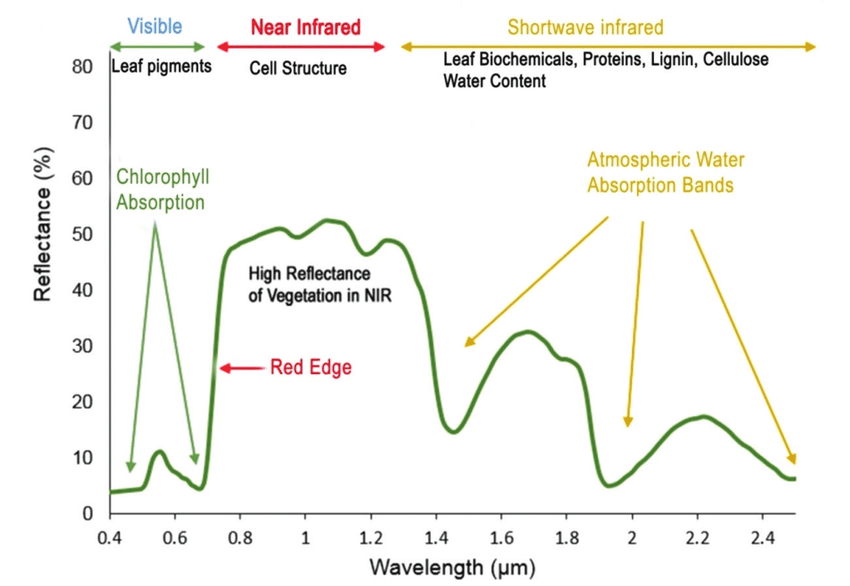
For example, vegetation has a distinct spectral signature.
Spectral signature of vegetation. Source: Roman, Anamaria & Ursu, Tudor. (2016). Multispectral satellite imagery and airborne laser scanning techniques for the detection of archaeological vegetation marks.
Vegetation has a unique spectral signature characterized by high reflectance in the near infrared wavelengths, and much lower reflectance in the green portion of the visible spectrum. For more details, please see Vegetation Analysis: Using Vegetation Indices in ENVI . We can extract reflectance values in the NIR and visible spectrums from hyperspectral data in order to map vegetation on the earth's surface. You can also use spectral curves as a proxy for vegetation health. We will explore this concept more in the next lesson, where we will caluclate vegetation indices.
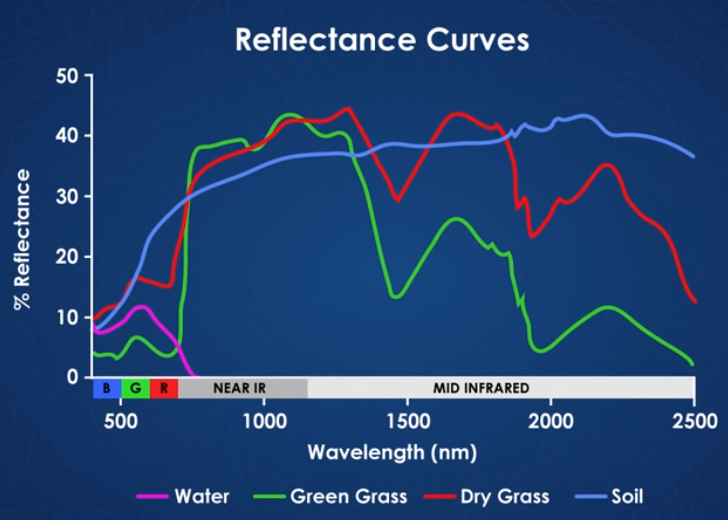
Example spectra of water, green grass, dry grass, and soil. Source: National Ecological Observatory Network (NEON)
import os, sys
import requests
import numpy as np
import pandas as pd
import matplotlib.pyplot as plt
This next function is a handy way to download the Python module and data that we will be using for this lesson. This uses the requests package.
# function to download data stored on the internet in a public url to a local file
def download_url(url,download_dir):
    if not os.path.isdir(download_dir):
        os.makedirs(download_dir)
    filename = url.split('/')[-1]
    r = requests.get(url, allow_redirects=True)
    file_object = open(os.path.join(download_dir,filename),'wb')
    file_object.write(r.content)
Download the module from its location on GitHub, add the python_modules to the path and import the neon_aop_hyperspectral.py module.
module_url = "https://raw.githubusercontent.com/NEONScience/NEON-Data-Skills/main/tutorials/Python/AOP/aop_python_modules/neon_aop_hyperspectral.py"
download_url(module_url,'../python_modules')
# os.listdir('../python_modules') #optionally show the contents of this directory to confirm the file downloaded

sys.path.insert(0, '../python_modules')
# import the neon_aop_hyperspectral module, the semicolon supresses an empty plot from displaying
import neon_aop_hyperspectral as neon_hs;
# define the data_url to point to the cloud storage location of the the hyperspectral hdf5 data file
data_url = "https://storage.googleapis.com/neon-aop-products/2021/FullSite/D02/2021_SERC_5/L3/Spectrometer/Reflectance/NEON_D02_SERC_DP3_368000_4306000_reflectance.h5"
# download the h5 data
download_url(data_url,'.\data')
# read the h5 reflectance file (including the full path) to the variable h5_file_name
h5_file_name = data_url.split('/')[-1]
h5_tile = os.path.join(".\data",h5_file_name)

# read in the data using the neon_hs module
serc_refl, serc_refl_md, wavelengths = neon_hs.aop_h5refl2array(h5_tile,'Reflectance')
Reading in .\data\NEON_D02_SERC_DP3_368000_4306000_reflectance.h5
Optionally, you can view the data stored in the metadata dictionary, and print the minimum, maximum, and mean reflectance values in the tile. In order to ignore NaN values, use numpy.nanmin/nanmax/nanmean.
for item in sorted(serc_refl_md):
    print(item + ':',serc_refl_md[item])

print('\nSERC Tile Reflectance Stats:')
print('min:',np.nanmin(serc_refl))
print('max:',round(np.nanmax(serc_refl),2))
print('mean:',round(np.nanmean(serc_refl),2))
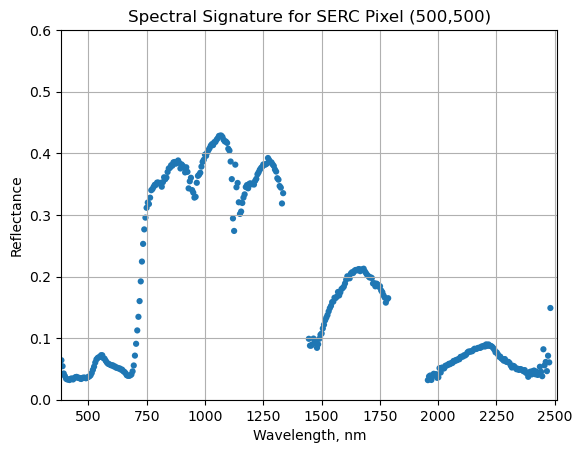
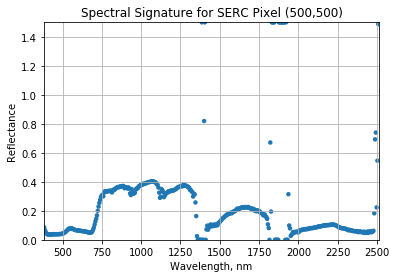
We can use pandas to create a dataframe containing the wavelength and reflectance values for a single pixel - in this example, we'll look at the center pixel of the tile (500,500). To extract all reflectance values from a single pixel, use splicing as we did before to select a single band, but now we need to specify (y,x) and select all bands (using :).
We can now plot the spectra, stored in this dataframe structure. pandas has a built in plotting routine, which can be called by typing .plot at the end of the dataframe.
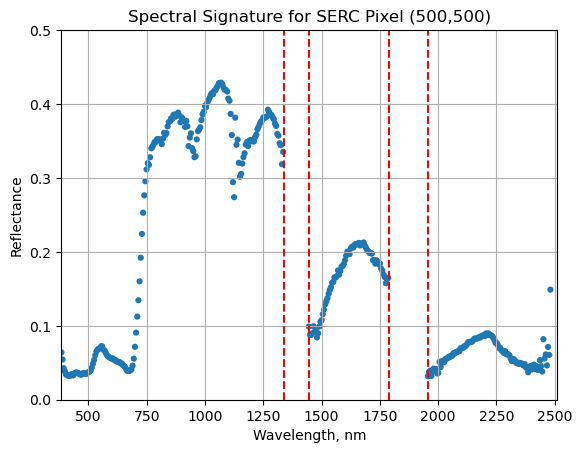
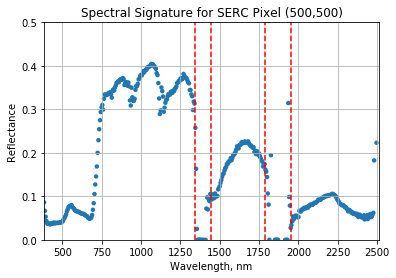
We can see from the spectral profile above that there are spikes in reflectance around ~1400nm and ~1800nm. These result from water vapor which absorbs light between wavelengths 1340-1445 nm and 1790-1955 nm. The atmospheric correction that converts radiance to reflectance subsequently results in a spike at these two bands. The wavelengths of these water vapor bands is stored in the reflectance attributes, which is saved in the reflectance metadata dictionary created with h5refl2array:
bbw1 = serc_refl_md['bad_band_window1'];
bbw2 = serc_refl_md['bad_band_window2'];
print('Bad Band Window 1:',bbw1)
print('Bad Band Window 2:',bbw2)
Bad Band Window 1: [1340 1445]
Bad Band Window 2: [1790 1955]
Below we repeat the plot we made above, but this time draw in the edges of the water vapor band windows that we need to remove.
serc_pixel_df.plot(x='wavelengths',y='reflectance',kind='scatter',edgecolor='none');
plt.title('Spectral Signature for SERC Pixel (500,500)')
ax1 = plt.gca(); ax1.grid('on')
ax1.set_xlim([np.min(serc_pixel_df['wavelengths']),np.max(serc_pixel_df['wavelengths'])]);
ax1.set_ylim(0,0.5)
ax1.set_xlabel("Wavelength, nm"); ax1.set_ylabel("Reflectance")

#Add in red dotted lines to show boundaries of bad band windows:
ax1.plot((1340,1340),(0,1.5), 'r--');
ax1.plot((1445,1445),(0,1.5), 'r--');
ax1.plot((1790,1790),(0,1.5), 'r--');
ax1.plot((1955,1955),(0,1.5), 'r--');
We can now set these bad band windows to nan, along with the last 10 bands, which are also often noisy (as seen in the spectral profile plotted above). First make a copy of the wavelengths so that the original metadata doesn't change.
w = wavelengths.copy() #make a copy to deal with the mutable data type
w[((w >= 1340) & (w <= 1445)) | ((w >= 1790) & (w <= 1955))]=np.nan #can also use bbw1[0] or bbw1[1] to avoid hard-coding in
w[-10:]=np.nan;  # the last 10 bands sometimes have noise - best to eliminate
#print(w) #optionally print wavelength values to show that -9999 values are replaced with nan
Interactive Spectra Visualization
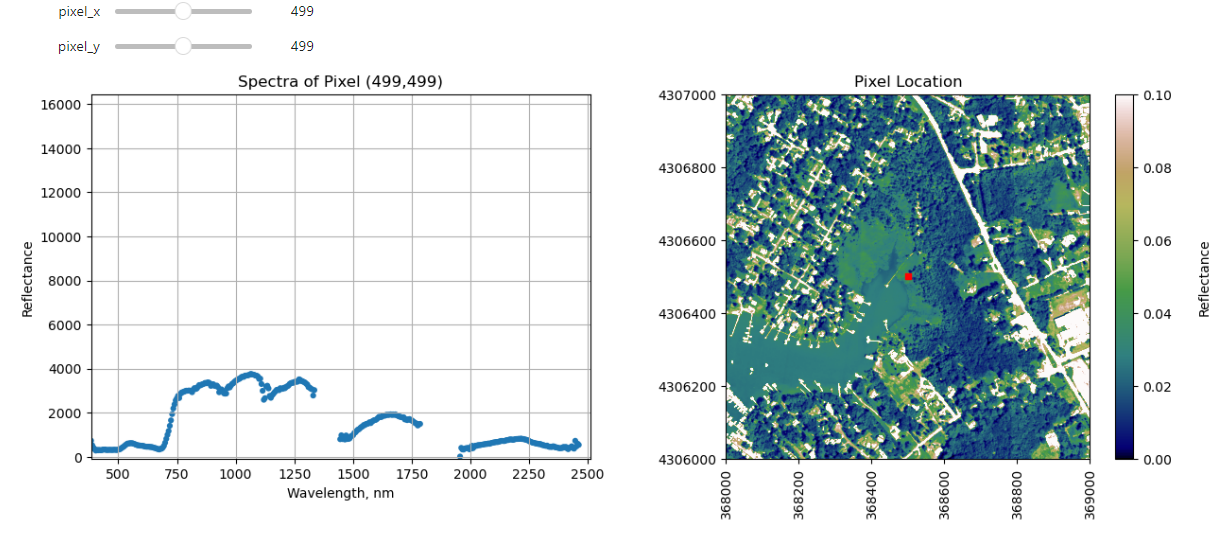
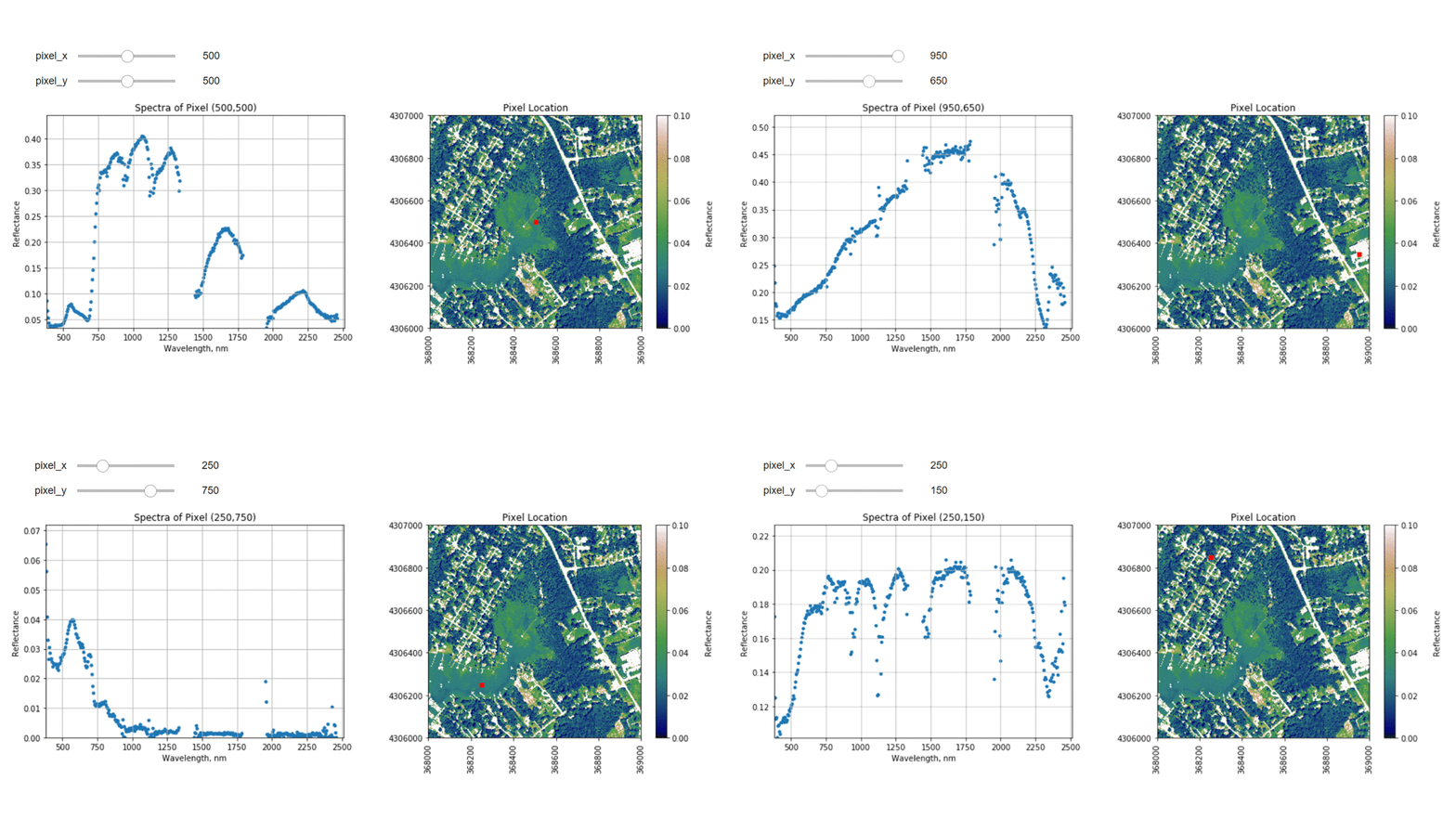
Finally, we can create a widget to interactively view the spectra of different pixels along the reflectance tile. Run the cell below, and select different pixel_x and pixel_y values to gain a sense of what the spectra look like for different materials on the ground.
#define refl_band, refl, and metadata, as copies of the original serc_refl data
refl_band = sercb56
refl = serc_refl.copy()
metadata = serc_refl_md.copy()

from IPython.html.widgets import *

def interactive_spectra_plot(pixel_x,pixel_y):

    reflectance = refl[pixel_y,pixel_x,:]

    pixel_df = pd.DataFrame()
    pixel_df['reflectance'] = reflectance
    pixel_df['wavelengths'] = w

    fig = plt.figure(figsize=(15,5))
    ax1 = fig.add_subplot(1,2,1)

    # fig, axes = plt.subplots(nrows=1, ncols=2)
    pixel_df.plot(ax=ax1,x='wavelengths',y='reflectance',kind='scatter',edgecolor='none');
    ax1.set_title('Spectra of Pixel (' + str(pixel_x) + ',' + str(pixel_y) + ')')
    ax1.set_xlim([np.min(wavelengths),np.max(wavelengths)]);
    ax1.set_ylim([np.min(pixel_df['reflectance']),np.max(pixel_df['reflectance']*1.1)])
    ax1.set_xlabel("Wavelength, nm"); ax1.set_ylabel("Reflectance")
    ax1.grid('on')

    ax2 = fig.add_subplot(1,2,2)
    plot = plt.imshow(refl_band,extent=metadata['extent'],clim=(0,0.1));
    plt.title('Pixel Location');
    cbar = plt.colorbar(plot,aspect=20); plt.set_cmap('gist_earth');
    cbar.set_label('Reflectance',rotation=90,labelpad=20);
    ax2.ticklabel_format(useOffset=False, style='plain') #do not use scientific notation
    rotatexlabels = plt.setp(ax2.get_xticklabels(),rotation=90) #rotate x tick labels 90 degrees

    ax2.plot(metadata['extent'][0]+pixel_x,metadata['extent'][3]-pixel_y,'s',markersize=5,color='red')
    ax2.set_xlim(metadata['extent'][0],metadata['extent'][1])
    ax2.set_ylim(metadata['extent'][2],metadata['extent'][3])

interact(interactive_spectra_plot, pixel_x = (0,refl.shape[1]-1,1),pixel_y=(0,refl.shape[0]-1,1));
In this tutorial, we will learn how to extract and plot a spectral profile from a single pixel of a reflectance band in a NEON hyperspectral HDF5 file.
In this exercise, we will learn how to extract and plot a spectral profile from
a single pixel of a reflectance band in a NEON hyperspectral hdf5 file. To do
this, we will use the aop_h5refl2array function to read in and clean our h5
reflectance data, and the Python package pandas to create a dataframe for the
reflectance and associated wavelength data.
Spectral Signatures
A spectral signature is a plot of the amount of light energy reflected by an
object throughout the range of wavelengths in the electromagnetic spectrum. The
spectral signature of an object conveys useful information about its structural
and chemical composition. We can use these signatures to identify and classify
different objects from a spectral image.
Vegetation has a unique spectral signature characterized by high reflectance in
the near infrared wavelengths, and much lower reflectance in the green portion
of the visible spectrum. We can extract reflectance values in the NIR and visible
spectrums from hyperspectral data in order to map vegetation on the earth's
surface. You can also use spectral curves as a proxy for vegetation health. We
will explore this concept more in the next lesson, where we will caluclate
vegetation indices.
Example spectra of water, green grass, dry grass, and soil. Source: National Ecological Observatory Network (NEON)
import numpy as np
import matplotlib.pyplot as plt
%matplotlib inline
import warnings
warnings.filterwarnings('ignore') #don't display warnings
Import the hyperspectral functions file that you downloaded into the variable neon_hs (for neon hyperspectral):
import os

# Note: you will need to update this filepath according to your local machine
os.chdir("/Users/olearyd/Git/data/")
import neon_aop_hyperspectral as neon_hs
# Note: you will need to update this filepath according to your local machine
sercRefl, sercRefl_md = neon_hs.aop_h5refl2array('/Users/olearyd/Git/data/NEON_D02_SERC_DP3_368000_4306000_reflectance.h5')
Optionally, you can view the data stored in the metadata dictionary, and print the minimum, maximum, and mean reflectance values in the tile. In order to handle any nan values, use Numpynanminnanmax and nanmean.
for item in sorted(sercRefl_md):
    print(item + ':',sercRefl_md[item])

print('SERC Tile Reflectance Stats:')
print('min:',np.nanmin(sercRefl))
print('max:',round(np.nanmax(sercRefl),2))
print('mean:',round(np.nanmean(sercRefl),2))
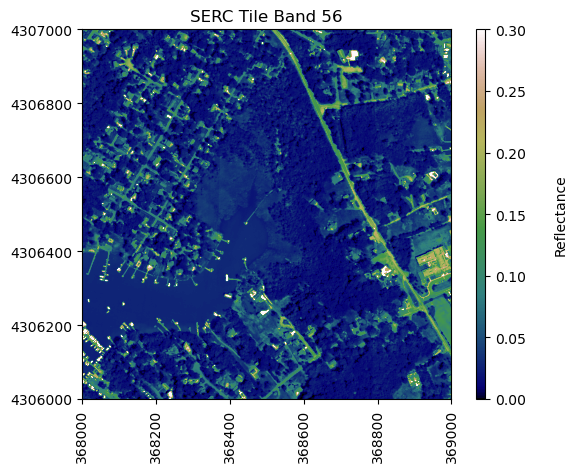
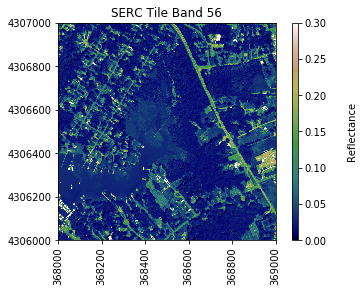
For reference, plot the red band of the tile, using splicing, and the plot_aop_refl function:
We can use pandas to create a dataframe containing the wavelength and reflectance values for a single pixel - in this example, we'll look at the center pixel of the tile (500,500).
import pandas as pd
To extract all reflectance values from a single pixel, use splicing as we did before to select a single band, but now we need to specify (y,x) and select all bands (using :).
We can now plot the spectra, stored in this dataframe structure. pandas has a built in plotting routine, which can be called by typing .plot at the end of the dataframe.
We can see from the spectral profile above that there are spikes in reflectance around ~1400nm and ~1800nm. These result from water vapor which absorbs light between wavelengths 1340-1445 nm and 1790-1955 nm. The atmospheric correction that converts radiance to reflectance subsequently results in a spike at these two bands. The wavelengths of these water vapor bands is stored in the reflectance attributes, which is saved in the reflectance metadata dictionary created with h5refl2array:
bbw1 = sercRefl_md['bad band window1'];
bbw2 = sercRefl_md['bad band window2'];
print('Bad Band Window 1:',bbw1)
print('Bad Band Window 2:',bbw2)
Bad Band Window 1: [1340 1445]
Bad Band Window 2: [1790 1955]
Below we repeat the plot we made above, but this time draw in the edges of the water vapor band windows that we need to remove.
serc_pixel_df.plot(x='wavelengths',y='reflectance',kind='scatter',edgecolor='none');
plt.title('Spectral Signature for SERC Pixel (500,500)')
ax1 = plt.gca(); ax1.grid('on')
ax1.set_xlim([np.min(serc_pixel_df['wavelengths']),np.max(serc_pixel_df['wavelengths'])]);
ax1.set_ylim(0,0.5)
ax1.set_xlabel("Wavelength, nm"); ax1.set_ylabel("Reflectance")

#Add in red dotted lines to show boundaries of bad band windows:
ax1.plot((1340,1340),(0,1.5), 'r--')
ax1.plot((1445,1445),(0,1.5), 'r--')
ax1.plot((1790,1790),(0,1.5), 'r--')
ax1.plot((1955,1955),(0,1.5), 'r--')
[<matplotlib.lines.Line2D at 0x81aaccb70>]
We can now set these bad band windows to nan, along with the last 10 bands, which are also often noisy (as seen in the spectral profile plotted above). First make a copy of the wavelengths so that the original metadata doesn't change.
import copy
w = copy.copy(sercRefl_md['wavelength']) #make a copy to deal with the mutable data type
w[((w >= 1340) & (w <= 1445)) | ((w >= 1790) & (w <= 1955))]=np.nan #can also use bbw1[0] or bbw1[1] to avoid hard-coding in
w[-10:]=np.nan;  # the last 10 bands sometimes have noise - best to eliminate
#print(w) #optionally print wavelength values to show that -9999 values are replaced with nan
Interactive Spectra Visualization
Finally, we can create a widget to interactively view the spectra of different pixels along the reflectance tile. Run the two cells below, and interact with them to gain a better sense of what the spectra look like for different materials on the ground.
#define index corresponding to nan values:
nan_ind = np.argwhere(np.isnan(w))

#define refl_band, refl, and metadata
refl_band = sercb56
refl = copy.copy(sercRefl)
metadata = copy.copy(sercRefl_md)
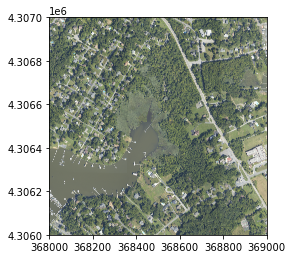
This tutorial introduces NEON RGB camera images (Data Product DP3.30010.001) and uses the Python package rasterio to read in and plot the camera data in Python. In this lesson, we will read in an RGB camera tile collected over the NEON Smithsonian Environmental Research Center (SERC) site and plot the mutliband image, as well as the individual bands. This lesson was adapted from the rasterio plotting documentation.
Objectives
After completing this tutorial, you will be able to:
Plot a NEON RGB camera geotiff tile in Python using rasterio
Package Requirements
This tutorial was run in Python version 3.9, using the following packages:
rasterio
matplotlib
Download the Data
Download the NEON
camera (RGB) imagery tile
collected over the Smithsonian Environmental Research Station (SERC) NEON field site in 2021. Move this data to a desired folder on your local workstation. You will need to know the file path to this data.
You don't have to download from the link above; the tutorial will demonstrate how to download the data directly from Python into your working directory, but we recommend re-organizing in a way that makes sense for you.
Background
As part of the
NEON Airborne Operation Platform's
suite of remote sensing instruments, the digital camera producing high-resolution (<= 10 cm) photographs of the earth’s surface. The camera records light energy that has reflected off the ground in the visible portion (red, green and blue) of the electromagnetic spectrum. Often the camera images are used to provide context for the hyperspectral and LiDAR data, but they can also be used for research purposes in their own right. One such example is the tree-crown mapping work by Weinstein et al. - see the links below for more information!
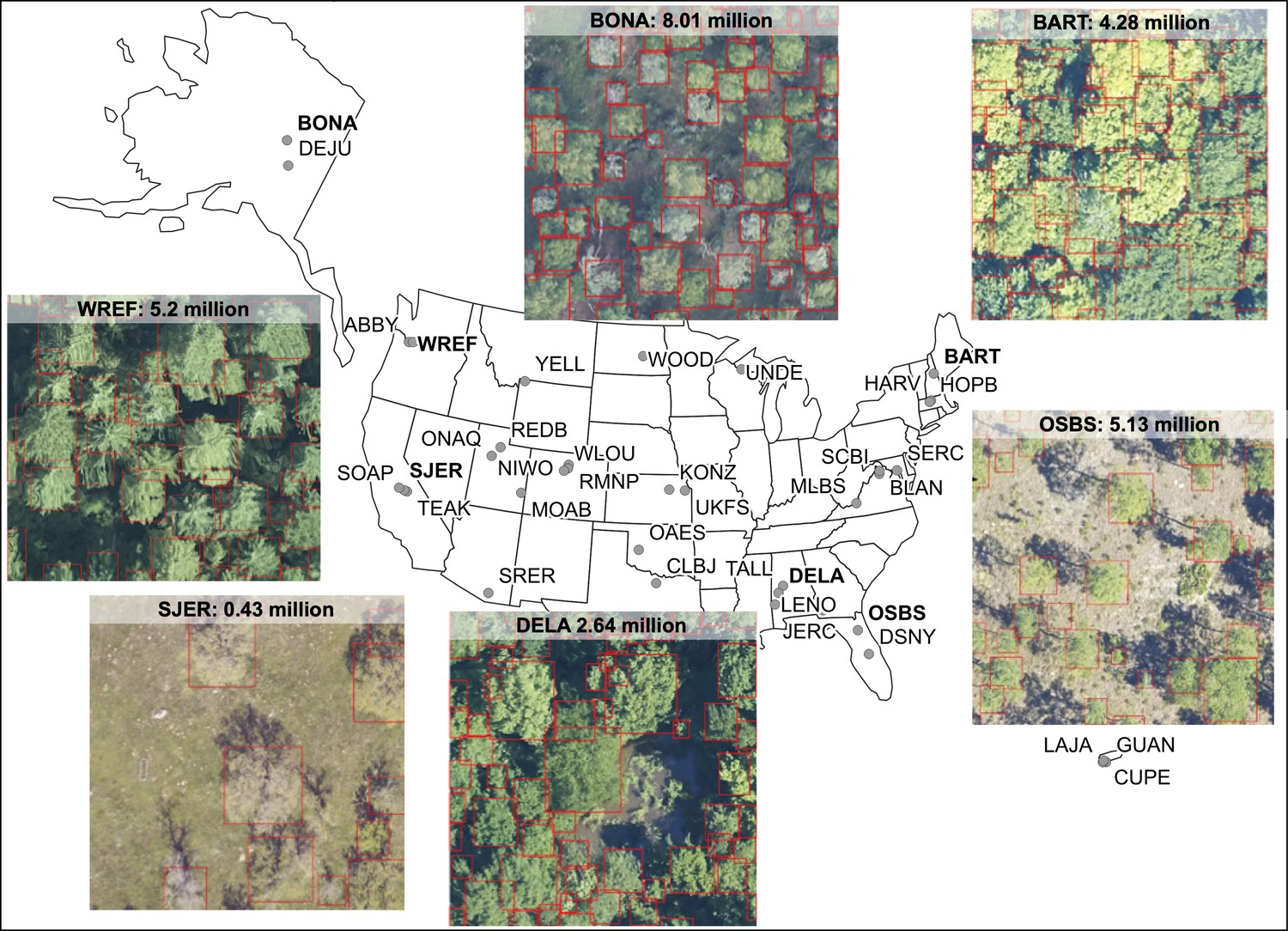
Reference: Ben G Weinstein, Sergio Marconi, Stephanie A Bohlman, Alina Zare, Aditya Singh, Sarah J Graves, Ethan P White (2021) A remote sensing derived data set of 100 million individual tree crowns for the National Ecological Observatory Network eLife 10:e62922. https://doi.org/10.7554/eLife.62922
In this lesson we will keep it simple and show how to read in and plot a single camera file (1km x 1km ortho-mosaicked tile) - a first step in any research incorporating the AOP camera data (in Python).
Import required packages
First let's import the packages that we'll be using in this lesson.
import os
import requests
import rasterio as rio
from rasterio.plot import show, show_hist
import matplotlib.pyplot as plt
Next, let's download a camera file. For this tutorial, we will use the requests package to download a raster file from the public link where the data is stored. For simplicity, we will show how to download to a data folder in the working directory. You can move the data to a different folder, but if you do that, be sure to update the path to your data accordingly.
def download_url(url,download_dir):
    if not os.path.isdir(download_dir):
        os.makedirs(download_dir)
    filename = url.split('/')[-1]
    r = requests.get(url, allow_redirects=True)
    file_object = open(os.path.join(download_dir,filename),'wb')
    file_object.write(r.content)
# public url where the RGB camera tile is stored
rgb_url = "https://storage.googleapis.com/neon-aop-products/2021/FullSite/D02/2021_SERC_5/L3/Camera/Mosaic/2021_SERC_5_368000_4306000_image.tif"

# download the camera tile to a ./data subfolder in your working directory
download_url(rgb_url,'.\data')

# display the contents in the ./data folder to confirm the download completed
os.listdir('./data')
Open the Camera RGB data with rasterio
We can open and read this RGB data that we downloaded in Python using the rasterio.open function:
# read the RGB file (including the full path) to the variable rgb_dataset
rgb_name = rgb_url.split('/')[-1]
rgb_file = os.path.join(".\data",rgb_name)
rgb_dataset = rio.open(rgb_file)
Let's look at a few properties of this dataset to get a sense of the information stored in the rasterio object:
print('rgb_dataset:\n',rgb_dataset)
print('\nshape:\n',rgb_dataset.shape)
print('\nspatial extent:\n',rgb_dataset.bounds)
print('\ncoordinate information (crs):\n',rgb_dataset.crs)
Unlike the other AOP data products, camera imagery is generated at 10cm resolution, so each 1km x 1km tile will contain 10000 pixels (other 1m resolution data products will have 1000 x 1000 pixels per tile, where each pixel represents 1 meter).
Plot the RGB multiband image
We can use rasterio's built-in functions show to plot the CHM tile.
show(rgb_dataset);
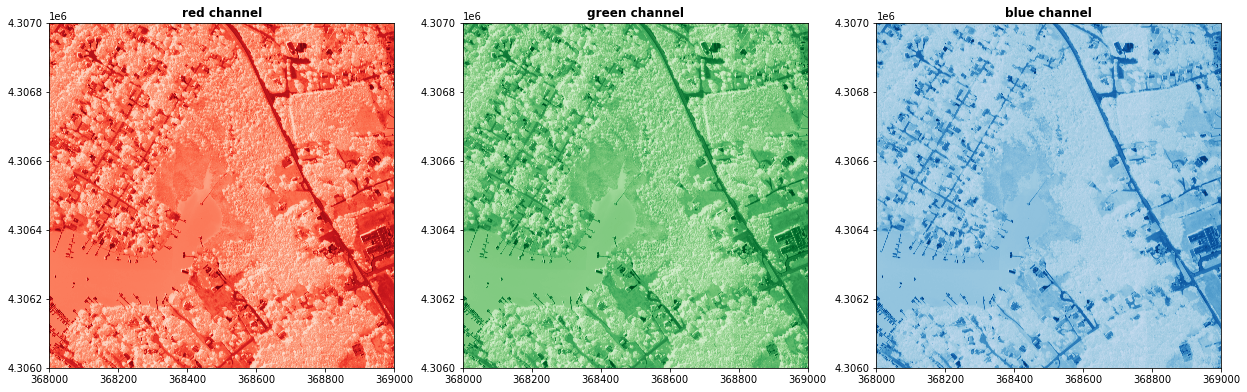
Plot each band of the RGB image
We can also plot each band (red, green, and blue) individually as follows:
That's all for this example! Most of the other AOP raster data are all single band images, but rasterio is a handy Python package for working with any geotiff files. You can download and visualize the lidar and spectrometer derived raster images similarly.
The instructions below will guide you through using the neonUtilities R package
in Python, via the rpy2 package. rpy2 creates an R environment you can interact
with from Python.
The assumption in this tutorial is that you want to work with NEON data in
Python, but you want to use the handy download and merge functions provided by
the neonUtilities R package to access and format the data for analysis. If
you want to do your analyses in R, use one of the R-based tutorials linked
below.
For more information about the neonUtilities package, and instructions for
running it in R directly, see the Download and Explore tutorial
and/or the neonUtilities tutorial.
Install and set up
Before starting, you will need:
Python 3 installed. It is probably possible to use this workflow in Python 2,
but these instructions were developed and tested using 3.7.4.
R installed. You don't need to have ever used it directly. We wrote this
tutorial using R 4.1.1, but most other recent versions should also work.
rpy2 installed. Run the line below from the command line, it won't run within
a Python script. See Python documentation for more information on how to install packages.
rpy2 often has install problems on Windows, see "Windows Users" section below if
you are running Windows.
You may need to install pip before installing rpy2, if you don't have it
installed already.
From the command line, run pip install rpy2
Windows users
The rpy2 package was built for Mac, and doesn't always work smoothly on Windows.
If you have trouble with the install, try these steps.
Add C:\Program Files\R\R-3.3.1\bin\x64 to the Windows Environment Variable “Path”
Pick the correct version. At the download page the portion of the files
with cp## relate to the Python version. e.g., rpy2 2.9.2 cp36 cp36m win_amd64.whl
is the correct download when 2.9.2 is the latest version of rpy2 and you are
running Python 36 and 64 bit Windows (amd64).
Save the whl file, navigate to it in windows then run pip directly on the file
as follows “pip install rpy2 2.9.2 cp36 cp36m win_amd64.whl”
Add an R_HOME Windows environment variable with the path C:\Program Files\R\R-3.4.3
(or whichever version you are running)
Add an R_USER Windows environment variable with the path C:\Users\yourUserName\AppData\Local\Continuum\Anaconda3\Lib\site-packages\rpy2
Additional troubleshooting
If you're still having trouble getting R to communicate with Python, you can try
pointing Python directly to your R installation path.
Run R.home() in R.
Run import os in Python.
Run os.environ['R_HOME'] = '/Library/Frameworks/R.framework/Resources' in Python, substituting the file path you found in step 1.
Load packages
Now open up your Python interface of choice (Jupyter notebook, Spyder, etc) and import rpy2 into your session.
import rpy2
import rpy2.robjects as robjects
from rpy2.robjects.packages import importr
Load the base R functionality, using the rpy2 function importr().
base = importr('base')
utils = importr('utils')
stats = importr('stats')
The basic syntax for running R code via rpy2 is package.function(inputs),
where package is the R package in use, function is the name of the function
within the R package, and inputs are the inputs to the function. In other
words, it's very similar to running code in R as package::function(inputs).
For example:
Suppress R warnings. This step can be skipped, but will result in messages
getting passed through from R that Python will interpret as warnings.
from rpy2.rinterface_lib.callbacks import logger as rpy2_logger
import logging
rpy2_logger.setLevel(logging.ERROR)
Install the neonUtilities R package. Here I've specified the RStudio
CRAN mirror as the source, but you can use a different one if you
prefer.
You only need to do this step once to use the package, but we update
the neonUtilities package every few months, so reinstalling
periodically is recommended.
This installation step carries out the same steps in the same places on
your hard drive that it would if run in R directly, so if you use R
regularly and have already installed neonUtilities on your machine,
you can skip this step. And be aware, this also means if you install
other packages, or new versions of packages, via rpy2, they'll
be updated the next time you use R, too.
The semicolon at the end of the line (here, and in some other function
calls below) can be omitted. It suppresses a note indicating the output
of the function is null. The output is null because these functions download
or modify files on your local drive, but none of the data are read into the
Python or R environments.
The downloaded binary packages are in
	/var/folders/_k/gbjn452j1h3fk7880d5ppkx1_9xf6m/T//Rtmpl5OpMA/downloaded_packages
Now load the neonUtilities package. This does need to be run every time
you use the code; if you're familiar with R, importr() is roughly
equivalent to the library() function in R.
neonUtilities = importr('neonUtilities')
Join data files: stackByTable()
The function stackByTable() in neonUtilities merges the monthly,
site-level files the NEON Data Portal
provides. Start by downloading the dataset you're interested in from the
Portal. Here, we'll assume you've downloaded IR Biological Temperature.
It will download as a single zip file named NEON_temp-bio.zip. Note the
file path it's saved to and proceed.
Run the stackByTable() function to stack the data. It requires only one
input, the path to the zip file you downloaded from the NEON Data Portal.
Modify the file path in the code below to match the path on your machine.
For additional, optional inputs to stackByTable(), see the R tutorial
for neonUtilities.
Stacking operation across a single core.
Stacking table IRBT_1_minute
Stacking table IRBT_30_minute
Merged the most recent publication of sensor position files for each site and saved to /stackedFiles
Copied the most recent publication of variable definition file to /stackedFiles
Finished: Stacked 2 data tables and 3 metadata tables!
Stacking took 2.019079 secs
All unzipped monthly data folders have been removed.
Check the folder containing the original zip file from the Data Portal;
you should now have a subfolder containing the unzipped and stacked files
called stackedFiles. To import these data to Python, skip ahead to the
"Read downloaded and stacked files into Python" section; to learn how to
use neonUtilities to download data, proceed to the next section.
Download files to be stacked: zipsByProduct()
The function zipsByProduct() uses the NEON API to programmatically download
data files for a given product. The files downloaded by zipsByProduct()
can then be fed into stackByTable().
Run the downloader with these inputs: a data product ID (DPID), a set of
4-letter site IDs (or "all" for all sites), a download package (either
basic or expanded), the filepath to download the data to, and an
indicator to check the size of your download before proceeding or not
(TRUE/FALSE).
The DPID is the data product identifier, and can be found in the data product
box on the NEON Explore Data page.
Here we'll download Breeding landbird point counts, DP1.10003.001.
There are two differences relative to running zipsByProduct() in R directly:
check.size becomes check_size, because dots have programmatic meaning
in Python
TRUE (or T) becomes 'TRUE' because the values TRUE and FALSE don't
have special meaning in Python the way they do in R, so it interprets them
as variables if they're unquoted.
check_size='TRUE' does not work correctly in the Python environment. In R,
it estimates the size of the download and asks you to confirm before
proceeding, and the interactive question and answer don't work correctly
outside R. Set check_size='FALSE' to avoid this problem, but be thoughtful
about the size of your query since it will proceed to download without checking.
Unpacking zip files using 1 cores.
Stacking operation across a single core.
Stacking table brd_countdata
Stacking table brd_perpoint
Copied the most recent publication of validation file to /stackedFiles
Copied the most recent publication of categoricalCodes file to /stackedFiles
Copied the most recent publication of variable definition file to /stackedFiles
Finished: Stacked 2 data tables and 4 metadata tables!
Stacking took 0.4586661 secs
All unzipped monthly data folders have been removed.
Read downloaded and stacked files into Python
We've downloaded biological temperature and bird data, and merged
the site by month files. Now let's read those data into Python so you
can proceed with analyses.
First let's take a look at what's in the output folders.
import os
os.listdir('/Users/Shared/filesToStack10003/stackedFiles/')
Each data product folder contains a set of data files and metadata files.
Here, we'll read in the data files and take a look at the contents; for
more details about the contents of NEON data files and how to interpret them,
see the Download and Explore tutorial.
There are a variety of modules and methods for reading tabular data into
Python; here we'll use the pandas module, but feel free to use your own
preferred method.
First, let's read in the two data tables in the bird data:
brd_countdata and brd_perpoint.
The function byFileAOP() uses the NEON API
to programmatically download data files for remote sensing (AOP) data
products. These files cannot be stacked by stackByTable() because they
are not tabular data. The function simply creates a folder in your working
directory and writes the files there. It preserves the folder structure
for the subproducts.
The inputs to byFileAOP() are a data product ID, a site, a year,
a filepath to save to, and an indicator to check the size of the
download before proceeding, or not. As above, set check_size="FALSE"
when working in Python. Be especially cautious about download size
when downloading AOP data, since the files are very large.
Here, we'll download Ecosystem structure (Canopy Height Model) data from
Hopbrook (HOPB) in 2017.
Downloading files totaling approximately 147.930656 MB
Downloading 217 files
  |======================================================================| 100%
Successfully downloaded 217 files to /Users/Shared/DP3.30015.001
Let's read one tile of data into Python and view it. We'll use the
rasterio and matplotlib modules here, but as with tabular data,
there are other options available.
There are myriad resources out there to learn programming in R. After linking to
a tutorial on how to install R and RStudio on your computer, we then outline a
few different paths to learn R basics depending on how you enjoy learning, and
finally we include a few resources for intermediate and advanced learning.
Setting Up your Computer
Start out by installing R and, we recommend, RStudio, on your computer. RStudio
is an Interactive Development Environment (IDE) for the R program. It
is optional, but recommended when working with R. Directions
for installing can be found within the tutorial Install Git, Bash Shell, R & RStudio.
You will need administrator permissions on your computer.
Pathways to Learning the Basics of R
In-person trainings
If you prefer to learn through in-person trainings, consider local workshops
from The Carpentries Software Carpentry or Data Carpentry (generally ~$25 for a
2-day workshop), courses offered by a local college or university (prices vary),
or organize your colleagues to meet regularly to learn R together (free!).
Online interactive courses
If you prefer to learn in a semi-structured online environment, there are a wide
variety of online courses for learning R including Data Camp, Coursera, edX, and
Lynda.com. Many of these options include free introductory lessons or trial
periods as well as paid courses. We do not have personal experience with
these courses and do not recommend or specifically promote any course.
In program interactive course
Swirl
is guided introduction to R where you code along with the instructions in R. You
get direct feedback when you type a command incorrectly. To use this package,
once you have R or RStudio open and running, use the following commands to start
the first lesson.
install.packages("swirl")
library(swirl)
swirl()
Online tutorials
If you prefer a less structured online environment, these tutorial series may be
better suited for you.
Learn R with a focus on data analysis. Beyond the basics, it covers dyplr for
data aggregation & manipulation, ggplot2 for plotting, and touches on
interacting with an SQL database. Designed to be taught by an instructor but the
materials also work for independent learning online.
This comprehensive course contains an R section. While the overall focus is on
data science skills, learning R is a portion of it (note, this is an extensive
course).
RStudio links to many other learning opportunities. Start with the 'Beginners'
learning path.
Video tutorials
A blend of having an instructor and self-paced, video tutorials may also be of
interest. New stand-alone video tutorials are out each day, so we aren’t going
to recommend a specific series. Find what works for you by searching
“R Programming video tutorials” on YouTube.
Books
Books are still a great way to learn R (and other languages). Many books are
available at local libraries (university or community) or online, if you want to
try them out before buying. Below are a few of the many, many books that data
scientists working on the NEON project have found useful.
Michael Crawley’s The R Book
is a classic that takes you from beginning steps to analyses and modelling.
Grolemun and Wickham’s R for Data Science
focuses on using R in data science applications using Hadley Wickham’s
“tidyverse”. It does assume some basic familiarity with R. Bonus: it is available
online or in book format!
(If you are completely new, they recommend starting with
Hands-on Programming with R).
Beyond the Basics
There are many intermediate and advanced courses, lessons, and tutorials linked
in the above resources. For example, the Swirl package offers intermediate and
advanced courses on specific topics, as does RStudio's list. See courses here;
development is ongoing so new courses may be added.
However, once the basics are handled, you will find that much of your learning
will happen through solving individual problems you encounter. To solve these
problems, your favorite search engine is your friend. Paste the error (without
specifics to your file/data) into the search menu and find answers from those
who have had similar questions.
For more on working with NEON data in particular, be sure to check out the other
NEON data tutorials.